Parsware Platform
Export and import a process
A process design is a plain JSON file you can export, edit and import, and the import checks it before anything reaches the canvas. Export a picture, PNG or SVG, for a document or a slide. Trying both, we fixed two things: the pictures now carry the lane names, and a refused file names the missing node.
Este artículo solo está disponible en inglés.
Underneath the drawing, a process is a plain text document: lanes, steps, connections, coforms and scripts, in JSON. You never have to look at it. But it means you can export a process as a file, import one back, and export a picture of it for somebody who will never open the designer.
We used the Parallel Sign-Off sample from samples/solutions/bpms-parallel-sign-off.
Where the buttons are
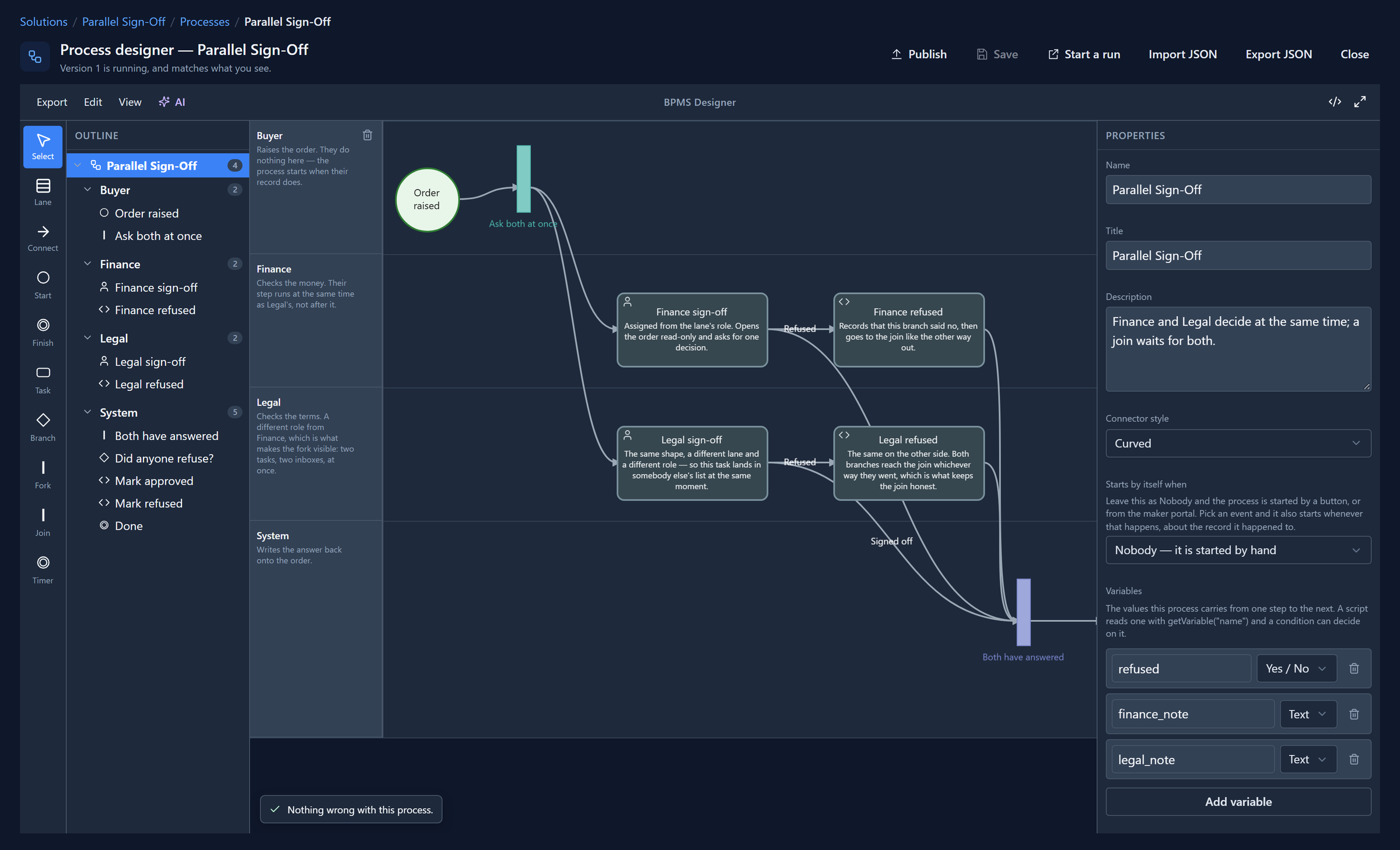
Import JSON and Export JSON are in the title bar, beside Save and Publish. The pictures are under the designer's own Export menu:
Export JSON
Export JSON downloads par_parallelsignoff.bpms.json. It's what is on the canvas now,
including edits you haven't saved, because the point of the file is to carry this design somewhere
else. The start of ours:
{
  "$schema": "bpms-design/v1",
  "version": 1,
  "meta": {
    "id": "par-parallel-sign-off",
    "name": "Parallel Sign-Off",
    "title": "Parallel Sign-Off",
    "description": "Finance and Legal decide at the same time; a join waits for both.",
    "scripts": {
      "onStart": "updateRecord(\"par_purchaseorder\", getRecordRef(\"record\"), { \"state\": 0, \"reason\": 270160001 });\nsetVariable(\"refused\", false);"
    }
  },
  "variables": [ … ],
  "forms": [ … ],
  "lanes": [ … ],
  "nodes": [ … ],
  "edges": [ … ]
}
Everything you set in the designer is in there, coforms and scripts included. It's readable, it diffs well in source control, and it's the same format the designer's AI button asks a model to write.
Export a picture
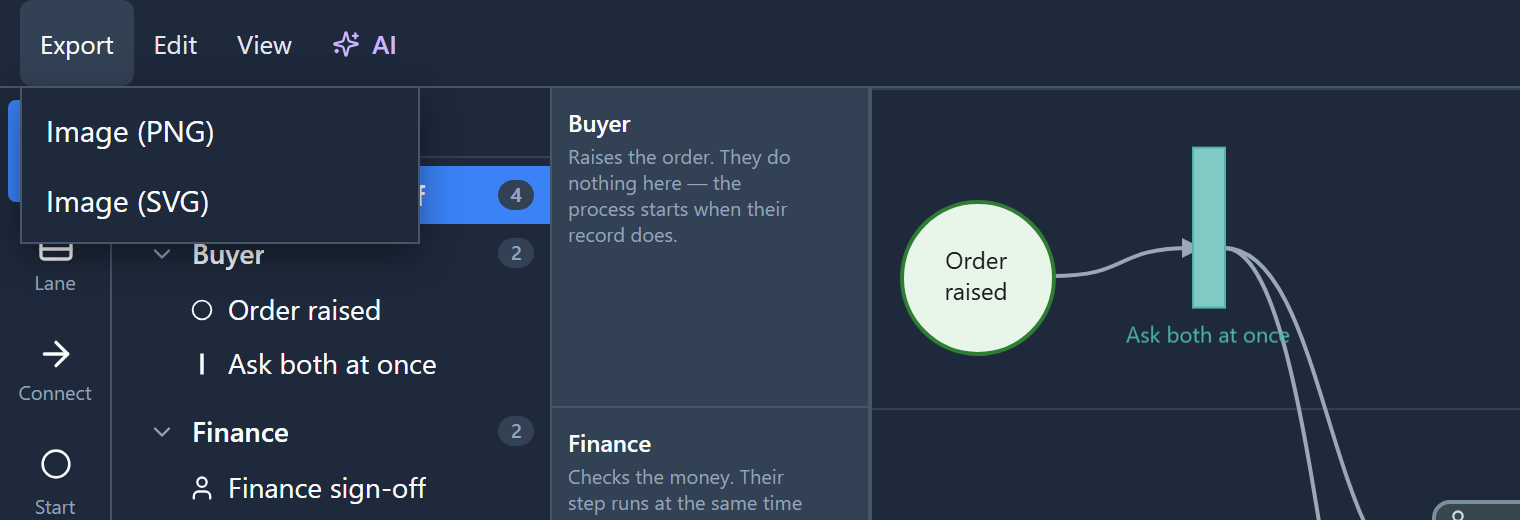
Export → Image (PNG) or Image (SVG) draws the whole diagram as it looks, not just the part in view:
This is the PNG it gave us:
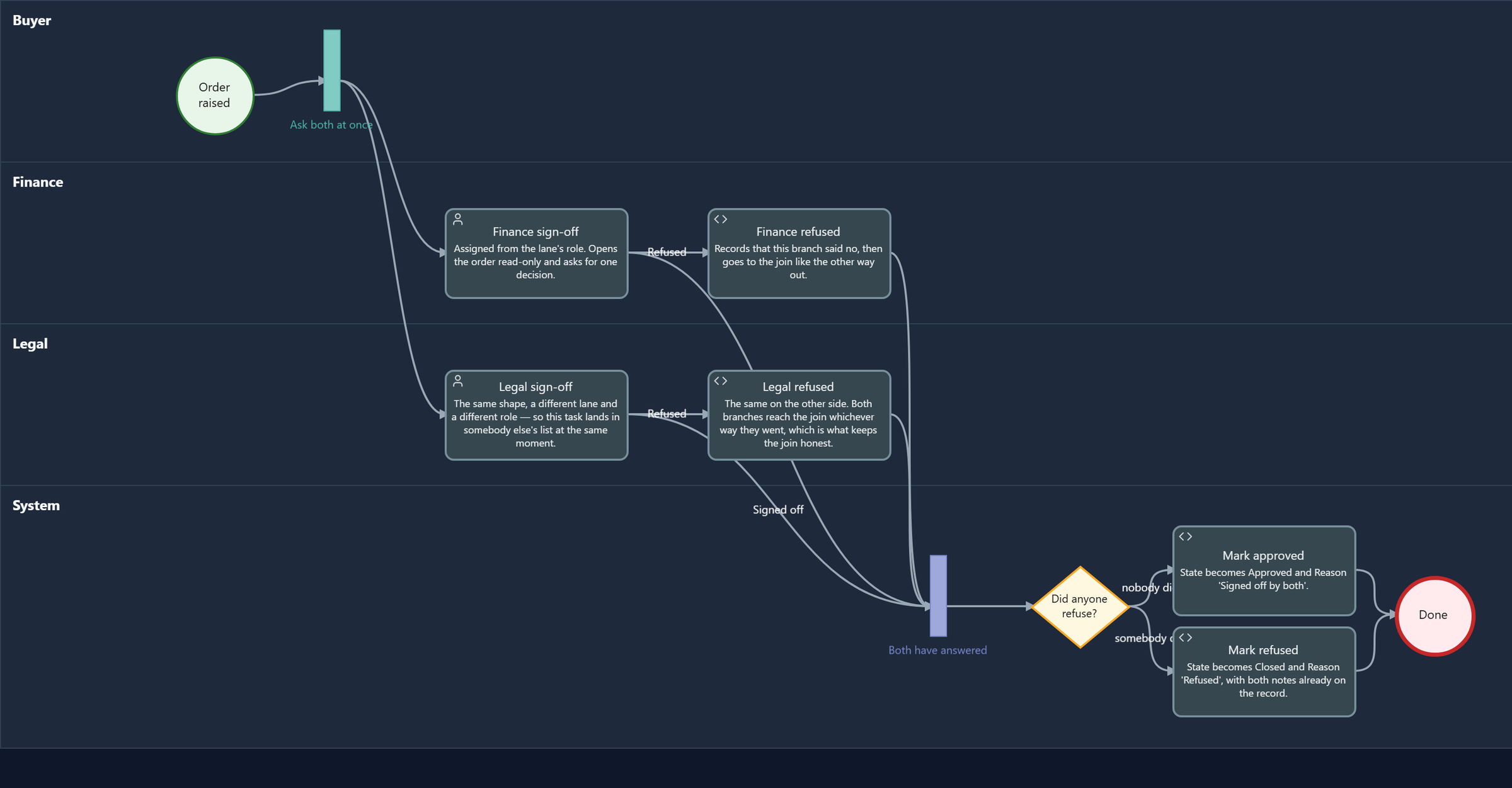
The lane names are new. On screen they sit in a column laid over the canvas, so they stay put while you scroll. The export drew only the canvas, so the picture showed every step and not who does them, which is the whole point of drawing a process on lanes. Each lane's name is now drawn into the picture. We fixed it while writing this.
SVG is the one to use in a document that will be printed or zoomed. Neither picture is the process: you can't import one back.
Import a file that's wrong
Import JSON opens a file picker. The file is checked before it goes anywhere near the canvas: the version, the lanes, the nodes, and that every connection joins two steps that exist.
To see that, we edited the exported file by hand and pointed the connection out of the join at a
step called node-decision, which doesn't exist. Importing it was refused:

The canvas didn't change. The message names the connection and the missing step, so you know what to search the file for. It used to say only that the connection "references unknown node(s)", which left you to check both ends against every step by eye. That changed while we wrote this, too.
Import a file that's right
Then we renamed the Finance lane to Treasury in the file and imported that:
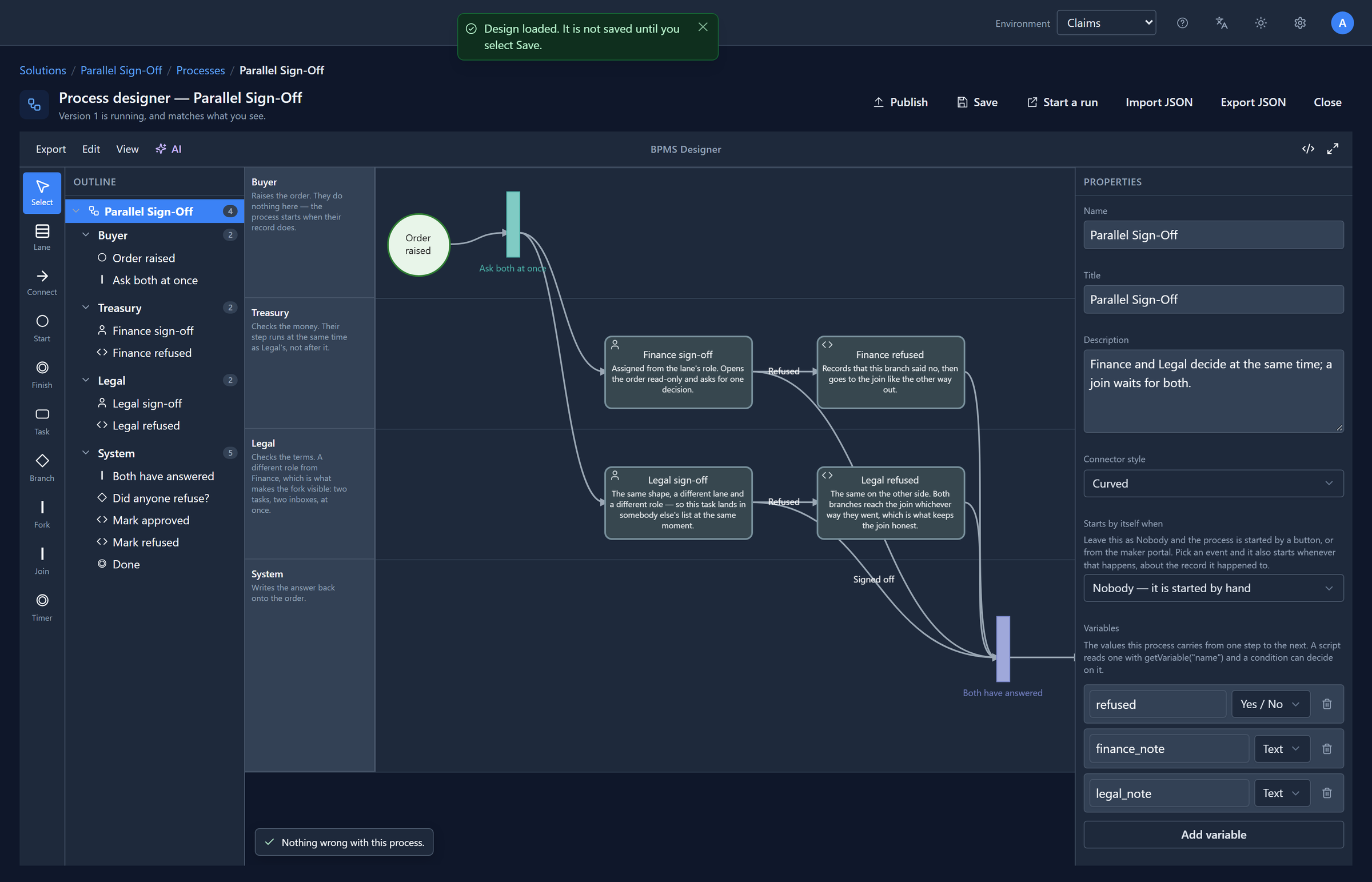
An import replaces what's drawn and doesn't save. If it turns out to be the wrong file, leave the page without saving and nothing has changed. If it's right, look it over and select Save.
Files, or the solution?
A process travels in its solution: export the solution, import it into Test or Production, and the process goes with its coforms and its roles. That's how work should move between environments.
Export and import JSON are the hand tools: copying a design to try something, keeping one in source control, editing many steps at once in a text editor, or bringing in a design somebody wrote or generated elsewhere. Either way, the same check runs.
Try it
Export the sample, open the file, and change a step's title. Import it, and the step on the canvas
has its new name. Then delete a lane from the file, leaving its steps, and import again. The message
names the step whose lane is missing.
Next: processes that actually run, from drawing to a person's task list.