Parsware Platform
Switch between environments
In Parsware every environment has its own web address, so moving from Development to Test is opening Test's address, not choosing from a menu. Bookmark each one, and two browser tabs can never be confused about which environment they are in.
Este artículo solo está disponible en inglés.
An organisation using Parsware usually has several environments: Development where apps are built, Test where they are tried, Production where the real work happens, and sometimes one per department. Each keeps its own data, so a record in Test never appears in Production.
In Parsware you don't switch environments with a menu. Every environment has its own web address, and you move between them by opening another address. This article shows where the addresses come from and what happens when you open one.
We used a tenant with two environments, Development and Test. Every picture is the real product.
Every environment has an address
An administrator sees each environment's address in the Admin Control Center. The home page shows the one that is open, with a button to open it and one to copy it:

Environments lists them all:
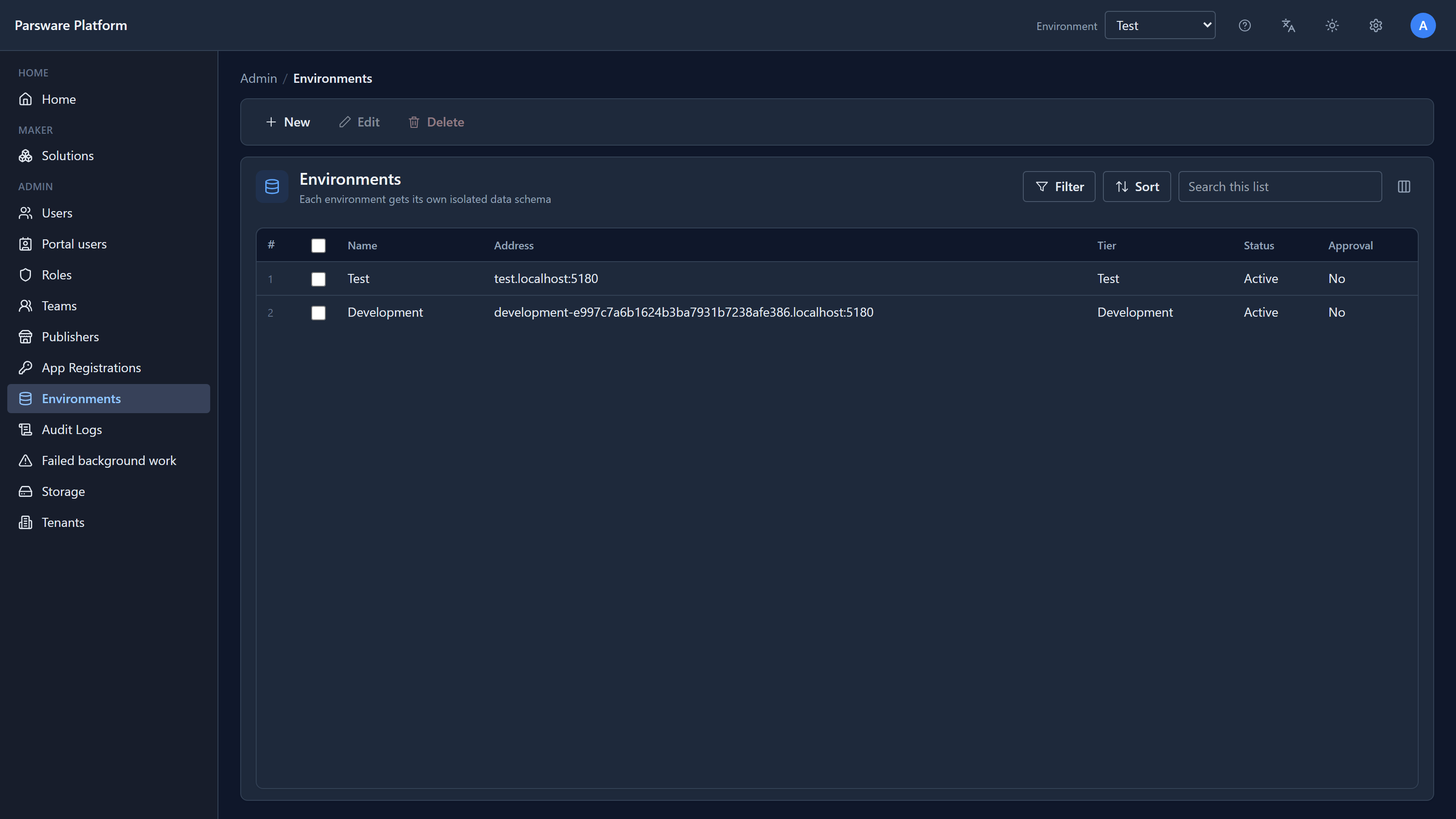
We are running on one machine, so the addresses end in localhost:5180. On a real deployment they
look like acme-test.parsware.com and acme.parsware.com. Your administrator gives you the ones you
need, usually along with your account.
The address decides which environment you are in
Open an environment's address and the Platform Shell opens in that environment. The top bar names it, and the apps list says whose apps these are:
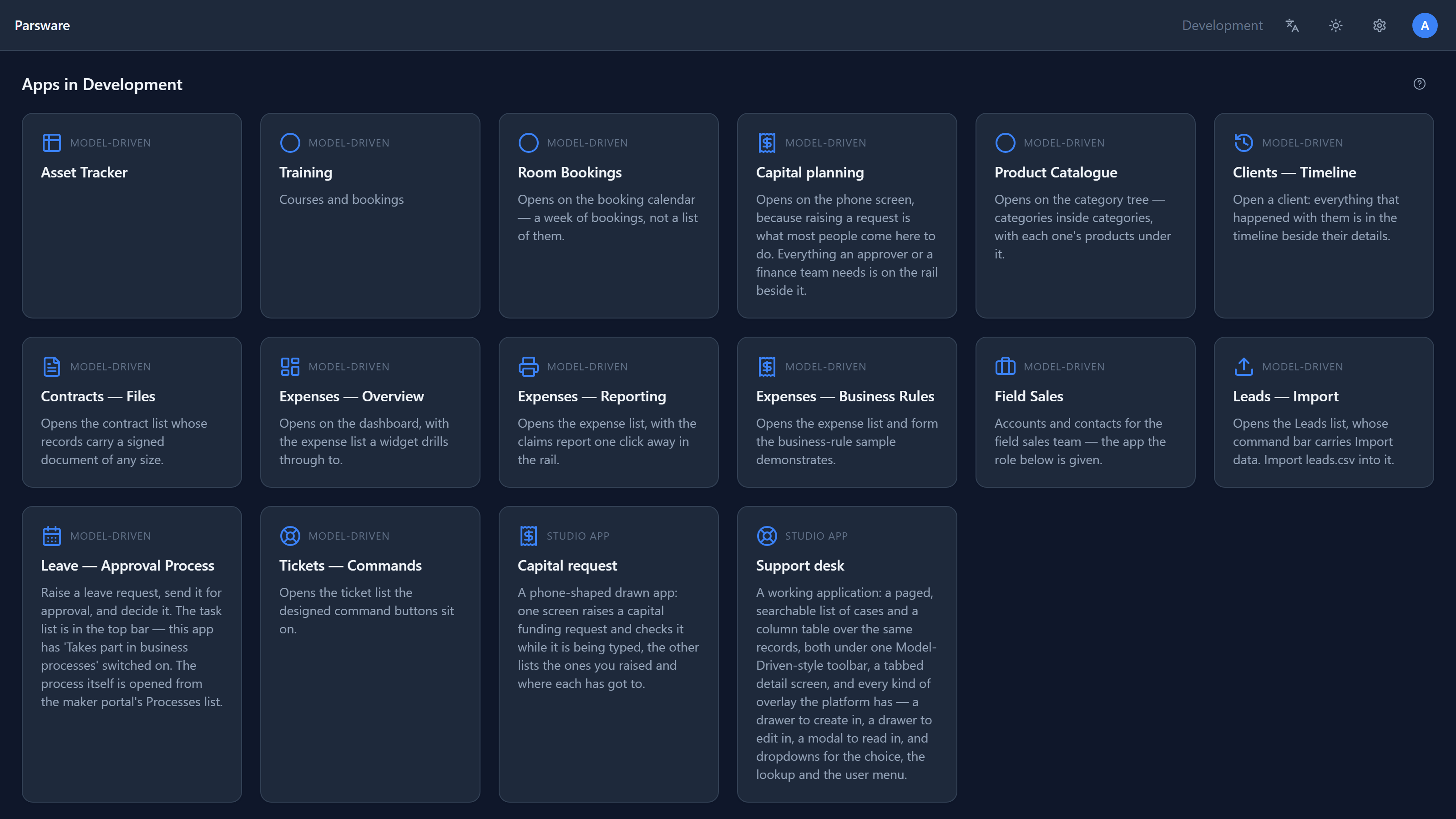
The name in the top bar is a label, not a menu. There is nothing to choose, because the address has already said which environment this is.
Moving to another one
To go to Test, open Test's address, in the same tab or a new one. Each address signs you in on its own, so the first time you open one you see the sign-in page:
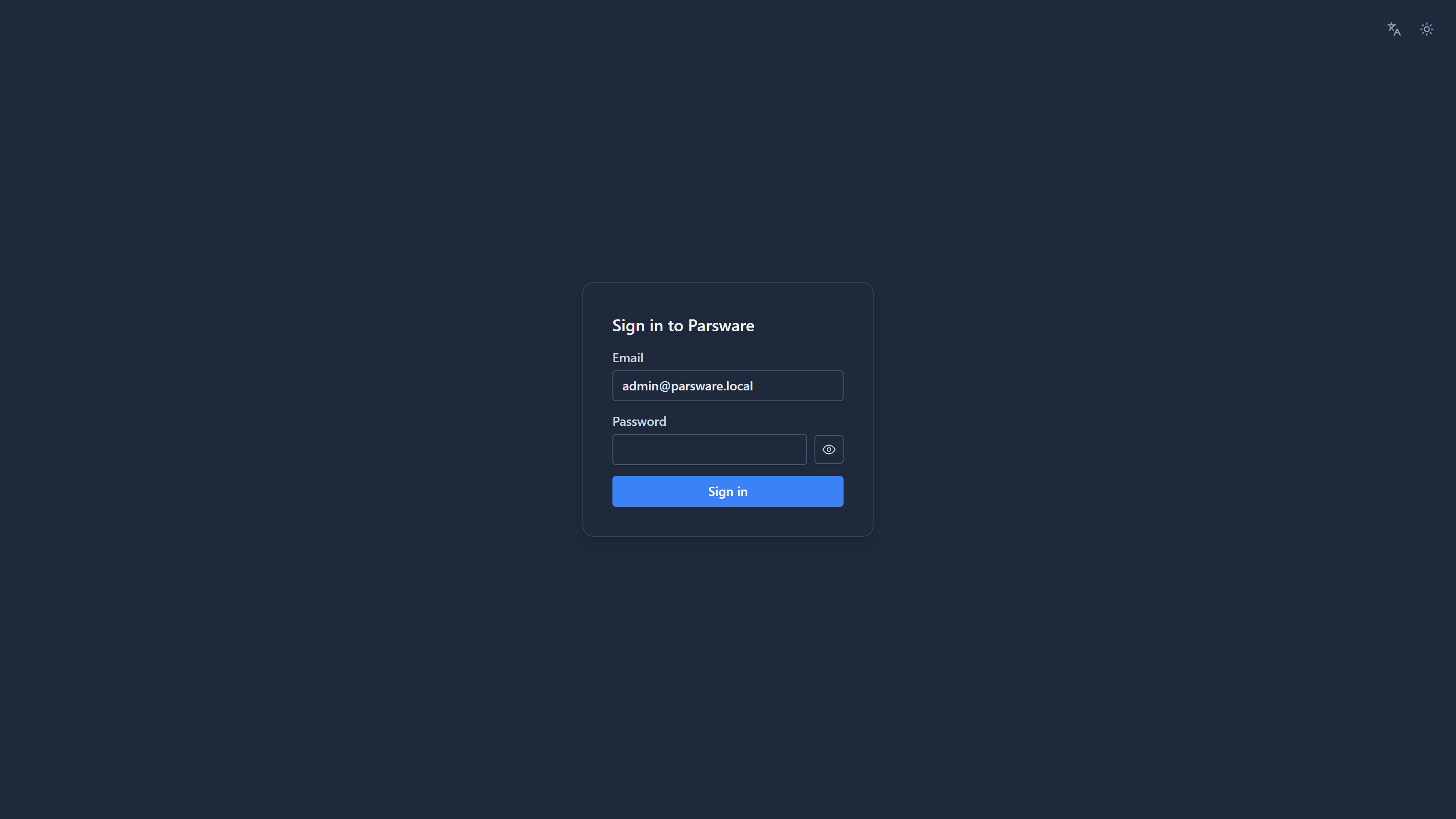
Sign in with the same account, and you are in Test, with Test's apps:
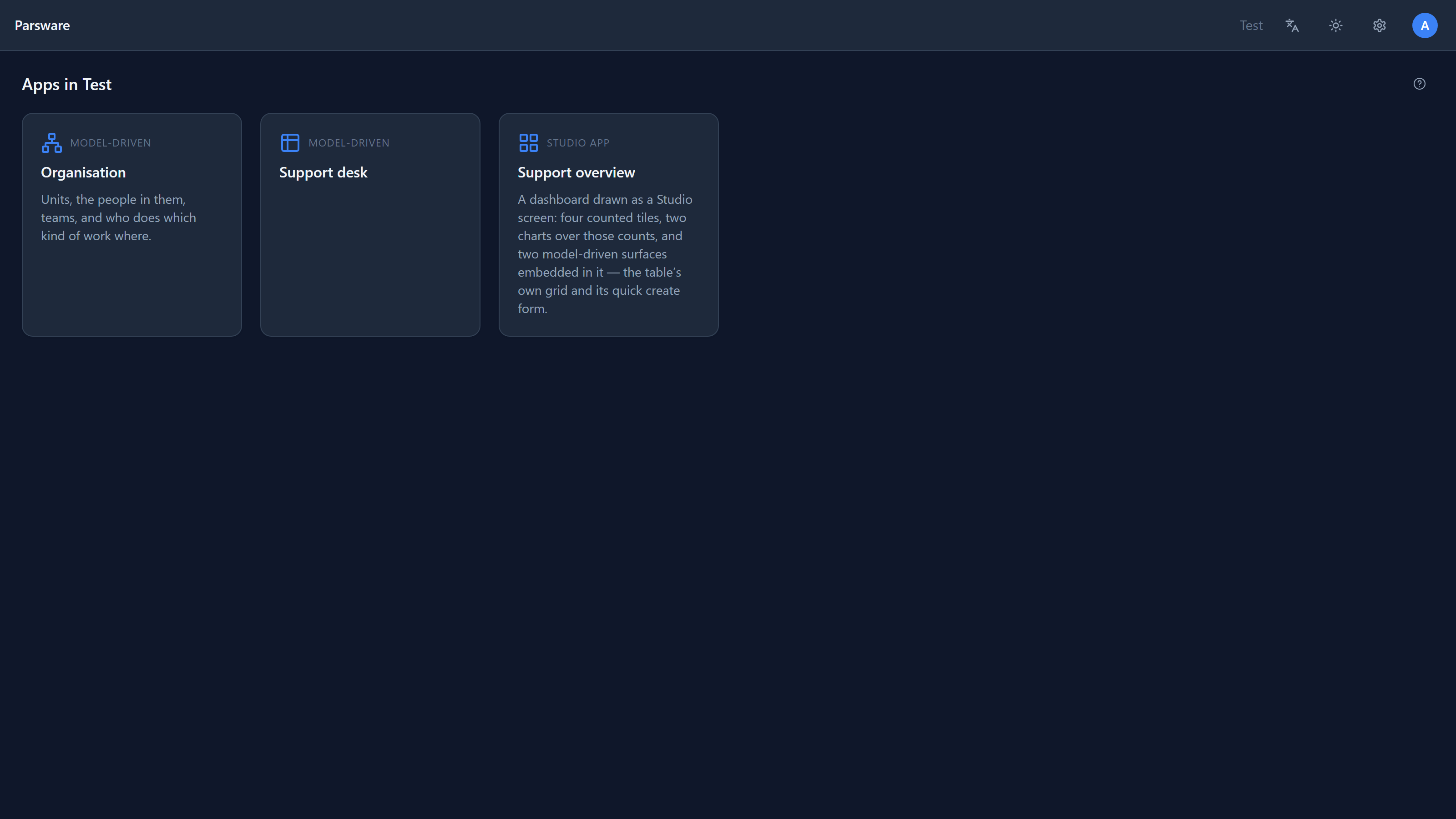
The two lists are different because the environments are different: each has the apps that have been imported into it. You only see an environment's apps if your security role in that environment gives you them.
Why an address and not a menu
A menu makes the environment a hidden setting, and hidden settings cause mistakes:
- Two tabs. With a menu, two tabs on the same address could be working in Test and Production. With an address, you can tell them apart at a glance.
- Bookmarks. A bookmark to an address brings you back to that environment. A bookmark with a menu would open whichever one you picked last.
- Links. A link to a record means the same record for whoever you send it to, because the environment is part of the link.
So bookmark each environment you use, with its name in the bookmark. Production is the one you should never reach by accident, and a separate bookmark makes sure you don't.
Next: handing a record to somebody else, or to a team.