Parsware Platform
The Organisation app
Every Parsware environment comes with an Organisation app. It holds your units as a chart, the people in each one, and who does which kind of work where, which is what processes route work by and what "my unit and below" access is measured against.
Este artículo solo está disponible en inglés.
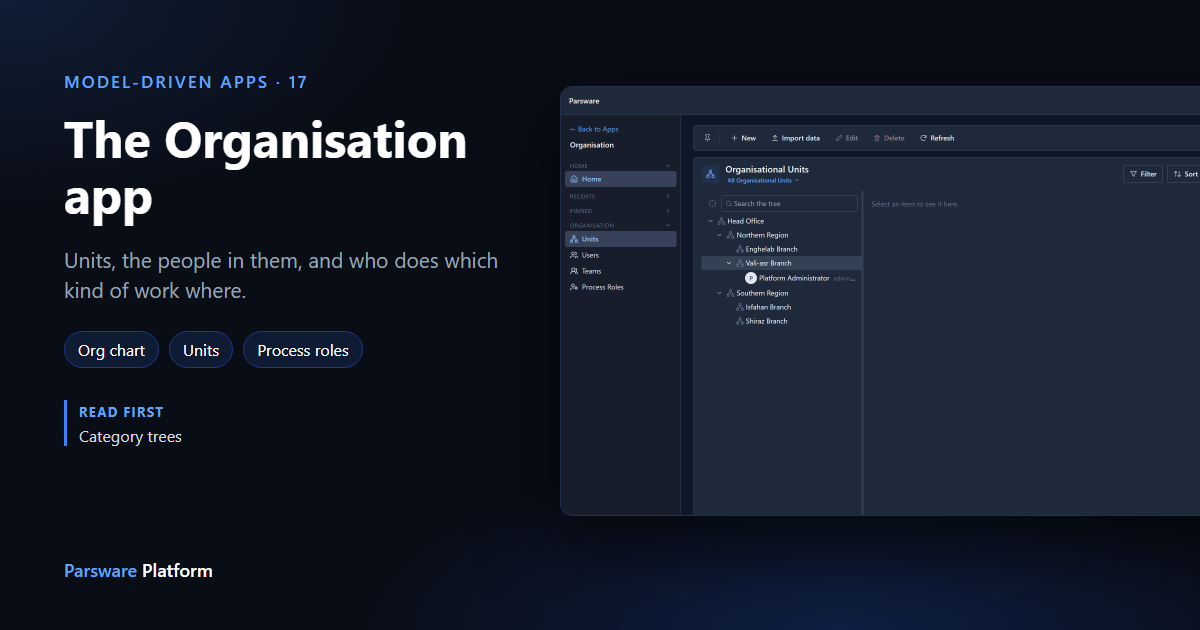
A business process that says "send this to the branch manager" needs to know which branch, and who manages it. A security rule that says "people see records in their own unit and below" needs a tree of units to measure against. In Parsware both come from one place: the Organisation app.
You don't install it. Every environment is created with the organisation tables and the app. It lives in each environment rather than tenant-wide, so you can rehearse a reorganisation in Test before it's true in Production.
We used a Test environment, which arrives with a sample organisation already in it. Every picture is the real product.
Four pages
Open Organisation from the apps list in the Platform Shell. The rail has four pages:
- Units: the organisation chart.
- Users: the environment's people, and which unit each one sits in.
- Teams: named groups a record can belong to, each in a unit.
- Process Roles: who does which kind of work, in which unit.
Units is a chart, not a list
Units opens as a tree. Each unit sits under the one above it, so you read the shape of the organisation rather than a column of parent names:
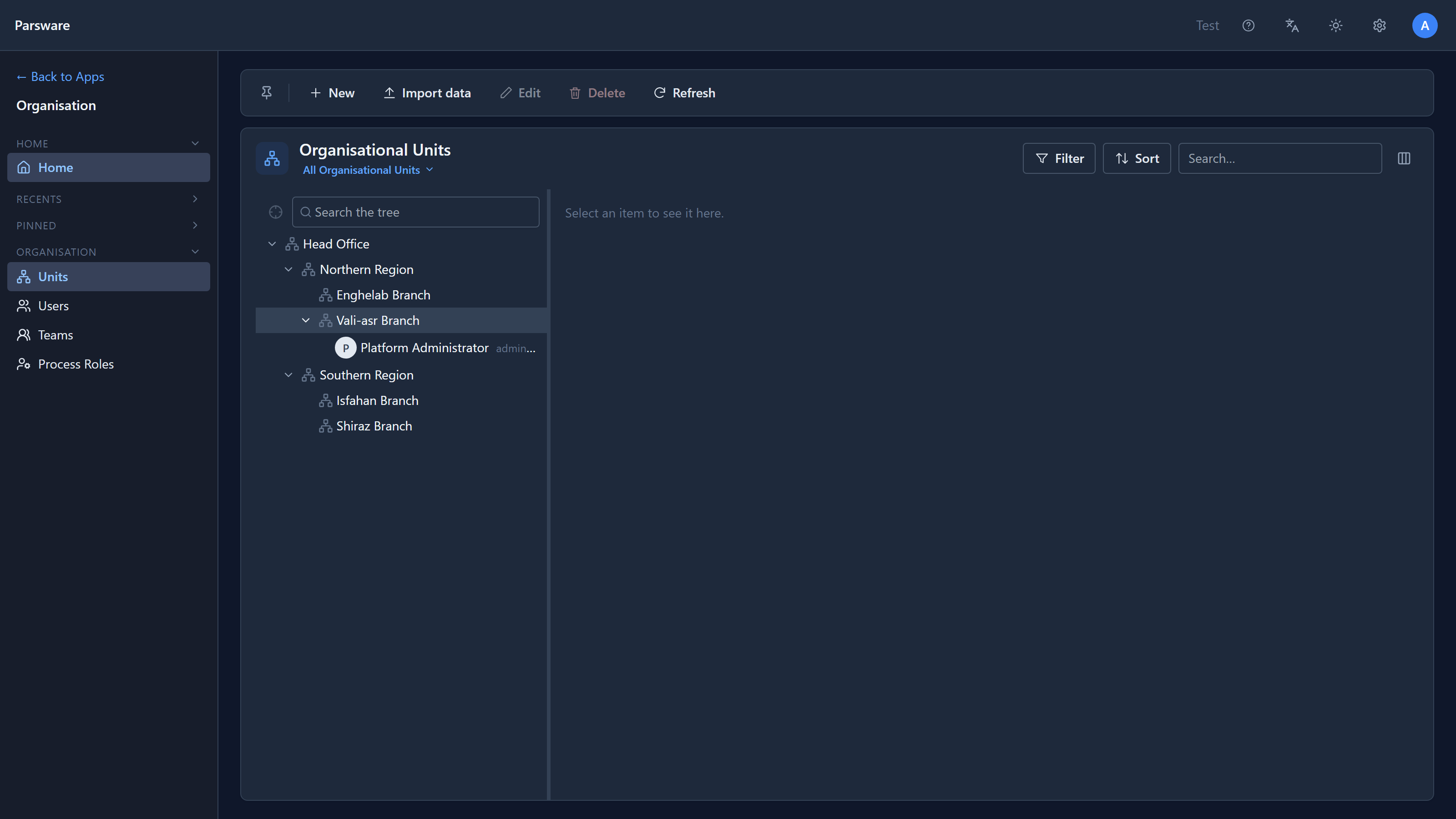
Open a unit with its chevron or the keyboard: right opens, left closes, and left again moves up to the parent. Only what you open is loaded, so a chart with thousands of units opens as fast as this one.
Click a unit and its form opens beside the chart. It's the table's own form, saved the same as on the record's page, and the chart stays where it is:
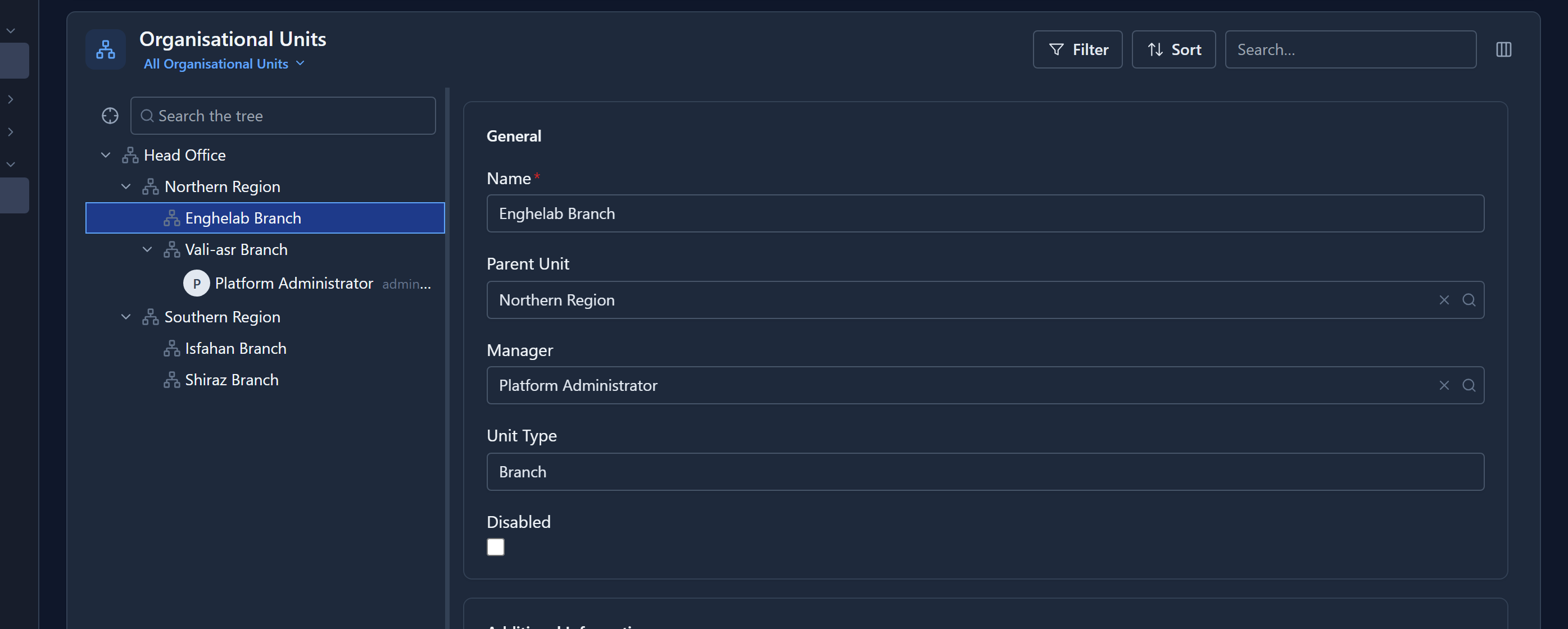
Three fields place a unit in the organisation:
- Parent Unit: the unit above it. Leave it empty at the top; two legal entities can mean two tops.
- Manager: who heads it.
- Unit Type: your own words for your levels, such as Region, Branch, Province or Hospital. It's text, not a list we ship.
People are in the chart too
Under each unit, below its sub-units, are the people who sit in it. Select one and you get a card, not a form, because a chart is where you read an organisation rather than edit an employee:
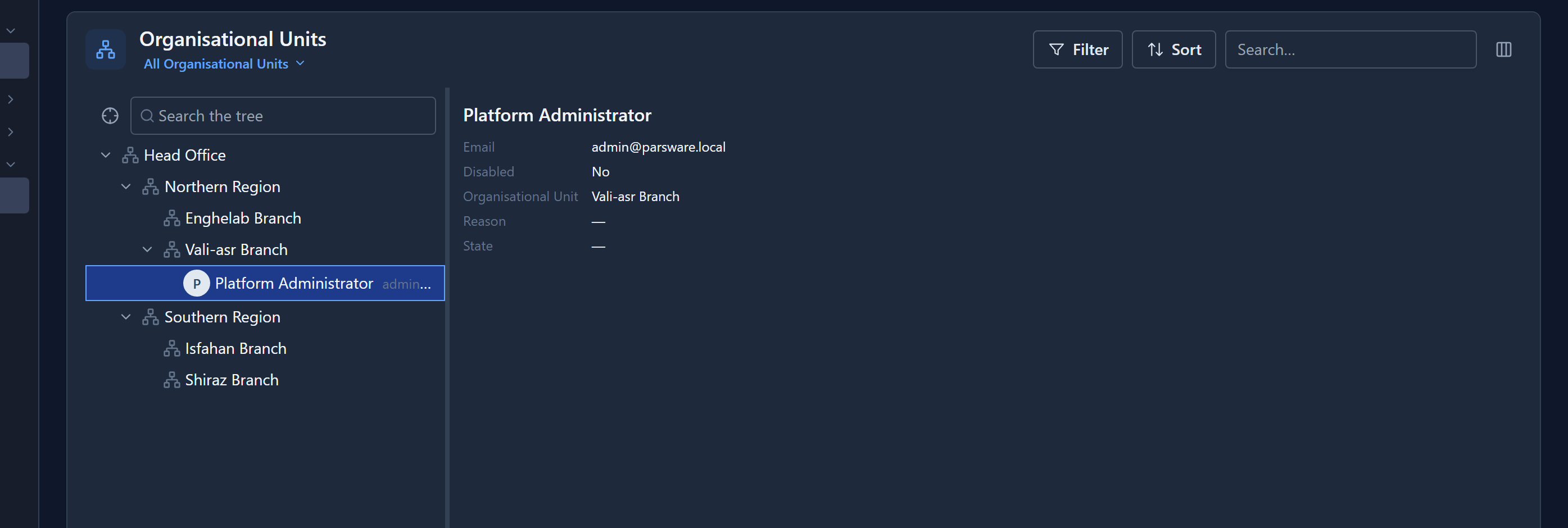
While writing this we found the card showed every column the record came back with, including housekeeping such as the row version and two owner columns labelled by their database names. With no card layout of its own, a card now shows the table's own fields, in order, and leaves the title field out because it's already the heading.
Find a unit
The box above the chart searches unit names. Matches appear under the units they sit in, so two branches with the same name are told apart by what's above them:
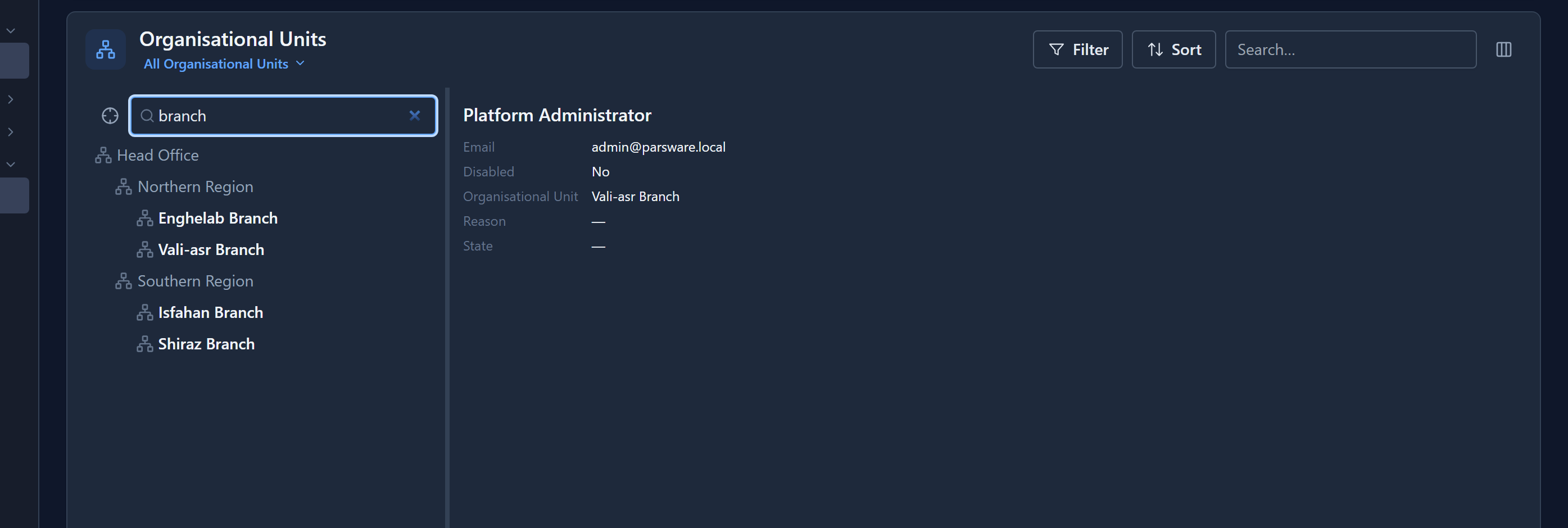
Choose a result to go back to the chart with that unit selected. Escape returns the chart with whatever you had open still open.
Show one branch
Select a unit and press Show only this branch (the crosshair beside the search box). The chart shows that part of the organisation, and a trail above it says where you are:
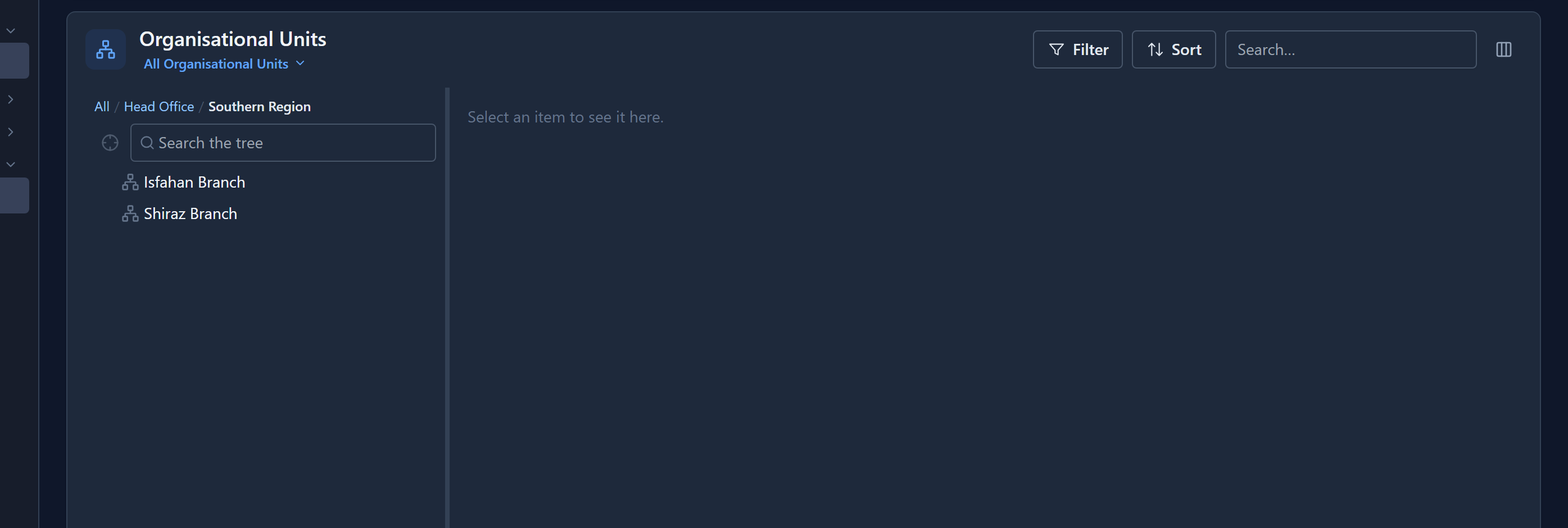
Select a step in the trail to climb back out, or All for the whole organisation. The focus is in the page address, so a link you send opens on the same branch.
Put people in units
Open Users, open someone, and set their Organisational Unit. A person sits in one unit:

Users are your tenant's people. They appear in an environment's Users list once they've done something in it, which is why this Test environment shows one.
Say who does what, where
Process Roles is what business processes route work by. Each row is a user, a unit and a role, read as "this person does this kind of work in this unit":
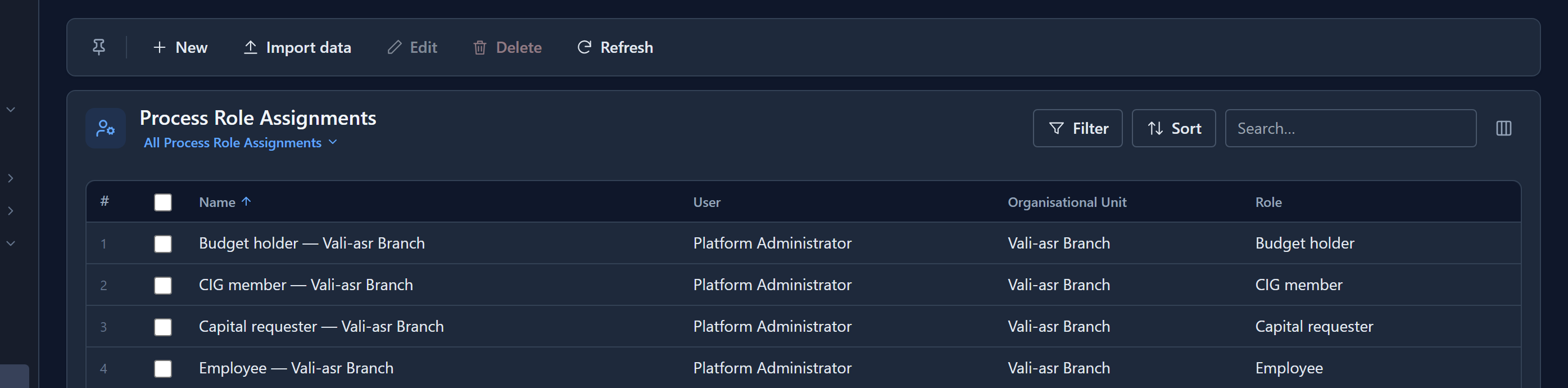
The unit doesn't have to be the person's own. A regional approver who sits at head office is one row. When a process step goes to a role, the engine asks who holds that role in the unit the run is for. If nobody does, it climbs the Parent Unit chain until it finds someone, or reaches the unit type the process says to stop at. If there's no row at all, the task waits on nobody: the process is fine, the organisation just isn't described yet.
A process role is not a permission. It decides who gets sent the work; what they may see is still their security role's job.
Sample data only where it helps
A development environment created with sample data arrives with an organisation like this one, so a process can run the minute the environment exists. Rename it, reshape it or delete it. Production environments never get one.
Next: delete a table safely.