For Power Apps
When a control can't load
Power Apps replaces a broken code component with six words, "Error loading control", whatever went wrong. The Parsware Runtime control says what is wrong instead, in its own space on the form, and the form designer shows it before you save. Here is every message, and what to do about each one.
Dieser Artikel ist nur auf Englisch verfügbar.
When a code component fails on a model-driven form, Power Apps draws a red box that says Error loading control. It says the same thing whether the cause is a typo, a missing solution or a bug, so it tells you something is wrong and nothing about what.
The Parsware Runtime control doesn't leave it to that box. When it can't show a design, it says why in the space the design would have used, in a sentence that names the design and the fix.
You see it before you save
The form designer runs the control for real. So when you set its Design to a name it can't use, the canvas shows the reason as soon as you press Done, before anything is saved or published:
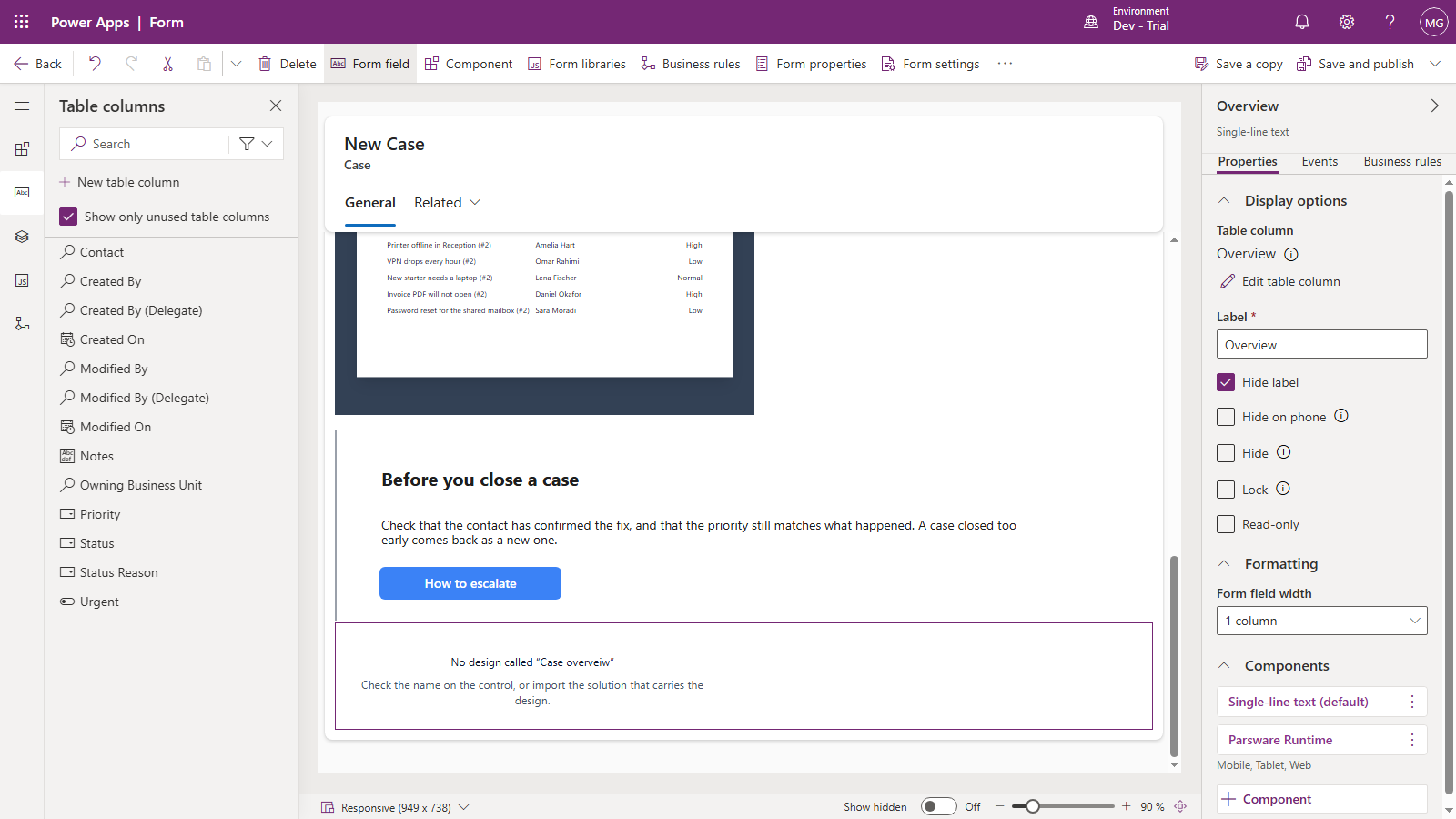
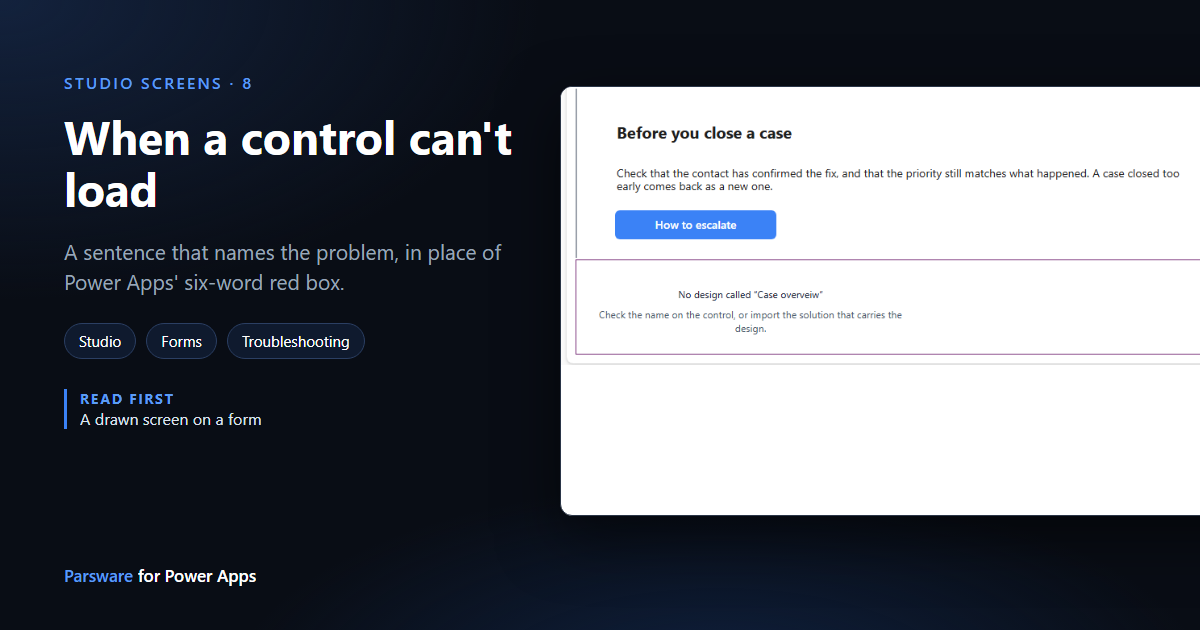
Here Case overview was typed as Case overveiw. Fix the name in the control's Design property, press Done, and the panel draws.
What each message means
These are the messages you can meet, roughly in the order you'd meet them while setting up a form.
No design chosen

The control has no design yet: its Design property is empty, and so is the Design name column if you bound one. That's normal right after you add the control. Type a design's name in Design, or bind the Design name column to a column that holds one.
No design called "…"
Nothing in the environment has that name. Either the name is misspelt, or the design is in a solution that hasn't been imported into this environment yet. Check the spelling against Designs in Parsware Studio, or import the solution that carries the design.
"…" has not been published

The design exists, but only as a draft. Forms show only what has been published, so a change you're still working on can't reach your users by accident (see Publish: drafts versus what users see). Open it in Parsware Studio and press Publish.
"…" cannot be shown on a form

The name belongs to something the control can't draw. Here it's a query, which a report reads its rows from but which has nothing to show by itself. Use the report built on it, or a Studio screen.
"…" has no screens
The design is a Studio app that was published before anything was drawn on it. Open it, draw a screen, and publish it again.
A red box with Retry
The control couldn't read the design, usually because the connection dropped or a request was refused. The box says what came back, and Retry tries again. If it keeps failing, the sentence in the box is the one to pass on to whoever looks after the environment.
A red line above a working screen
The screen loaded, but something it did was refused, and the line above it says what. For example,
a button that writes "lots" into a number column:
setFieldValue: "lots" is not a number, and this is a number column.
The screen goes on working. The problem is in the screen's own script, so fix it in Parsware Studio and publish again.
Parsware Runtime could not be shown: …
Something nobody planned for went wrong inside the control. The sentence after the colon says what, and the browser's console has the full details, under [Parsware Runtime]. That's the line to send us.
This is unavailable
Your users see this when the environment's Parsware licence doesn't allow the control to run. It deliberately says nothing about licences: the person reading a case can't fix that, so they're asked to talk to whoever looks after Parsware. Makers see the full reason in Parsware Studio.
If you still see "Error loading control"
Then Power Apps refused the control before any of it ran, and nothing inside the control can say why. There are two causes we know of:
- A column the control can't take. The Value property and the Second, Third and Fourth column slots accept text, number, decimal, currency, date and yes/no columns. A lookup or a choice column can't be bound to them.
- An older version of the control than the form expects. The three Parsware solutions are released together, so import the runtime, Studio and samples solutions from the same release.
Good to know
- The message is in the control's own space. It doesn't cover the form or take over the page, and everything else on the form keeps working.
- Most of these are found in the form designer. It runs the control against your environment, so a wrong name, a draft or a query shows there before your users can meet it.
Next
Generate a screen with AI is waiting on the feature, so the series moves on to The designer inside Power Apps: a tour of Parsware Studio. The whole series is in the reading list.