For Power Apps
One control, several columns
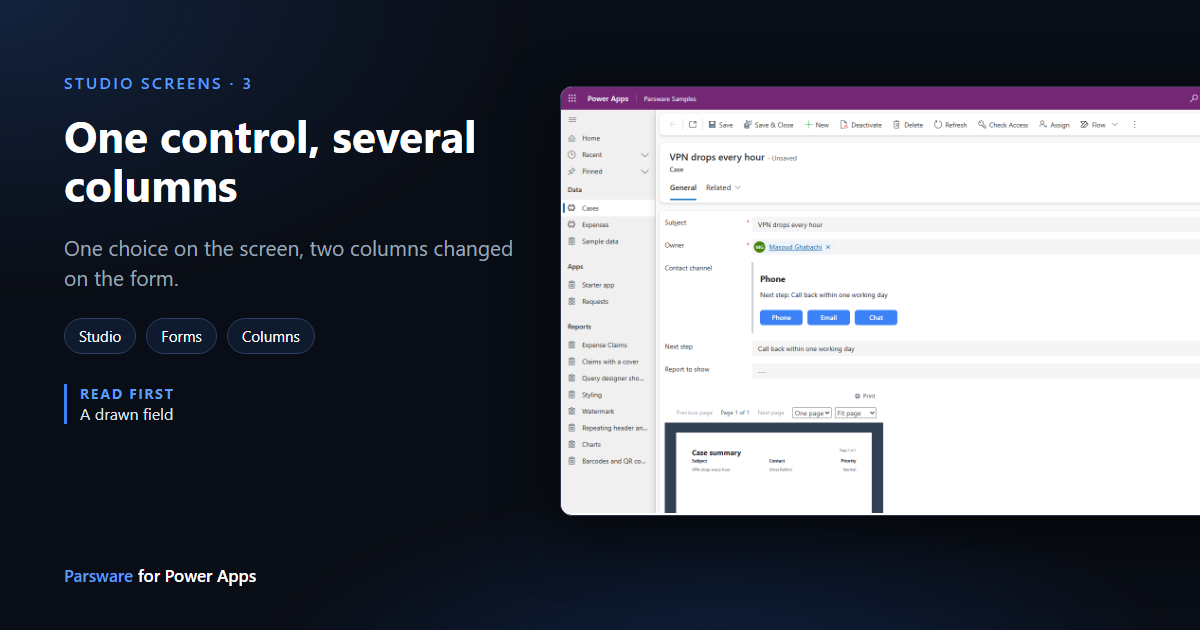
A drawn field can work with more than the column it sits on. Bind up to three more columns to the same Parsware Runtime component, and the screen reads them all and writes any of them by name. Here, choosing a contact channel also fills in the case's next step.
Dieser Artikel ist nur auf Englisch verfügbar.
The drawn field from the last article reads and writes one column, the one it sits on. Often one choice should change more than one thing. Choose Phone as the contact channel, and the case's next step is to call back.
The Parsware Runtime component takes up to three more columns besides the one it sits on. A screen reads each of them and can write any of them, by name. We'll make the channel field set a Next step column as well.
1. Bind the second column
The Case table has a single line of text column Next step, ex_nextstep, in our solution. In
the form designer, select the Contact channel field, open its Parsware Runtime component,
and set Second column to Next step:
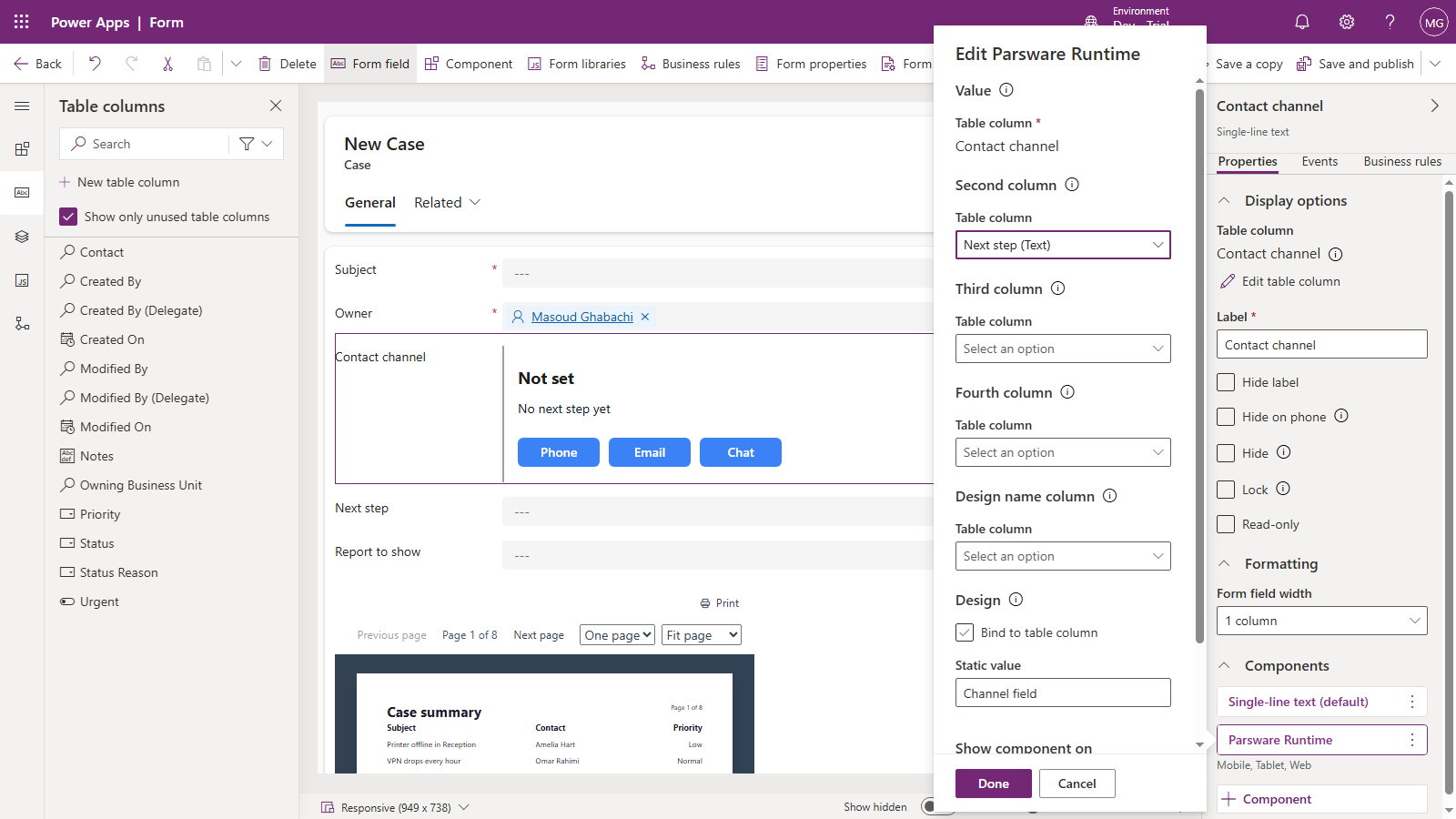
Each of the extra slots is a column picker, so the name can't be misspelled. We also put Next step on the form as an ordinary field, to watch it change. Save and publish the form.
2. Read it
Every bound column is available to the screen as fields.<logical name>, the column the screen sits
on included. In the Channel field design, add a second text below the value, mark it A
paragraph, and bind its Text to:
fields.ex_nextstep == "" ? "No next step yet" : "Next step: " + fields.ex_nextstep
3. Write both
Change each button's Pressed to write two columns. For Phone:
setFieldValue("Phone");
setFieldValue("ex_nextstep", "Call back within one working day");
With one argument, setFieldValue writes the column the screen sits on. With two, the first
is the column's logical name and the second is the value. Email and Chat get their own
sentences.
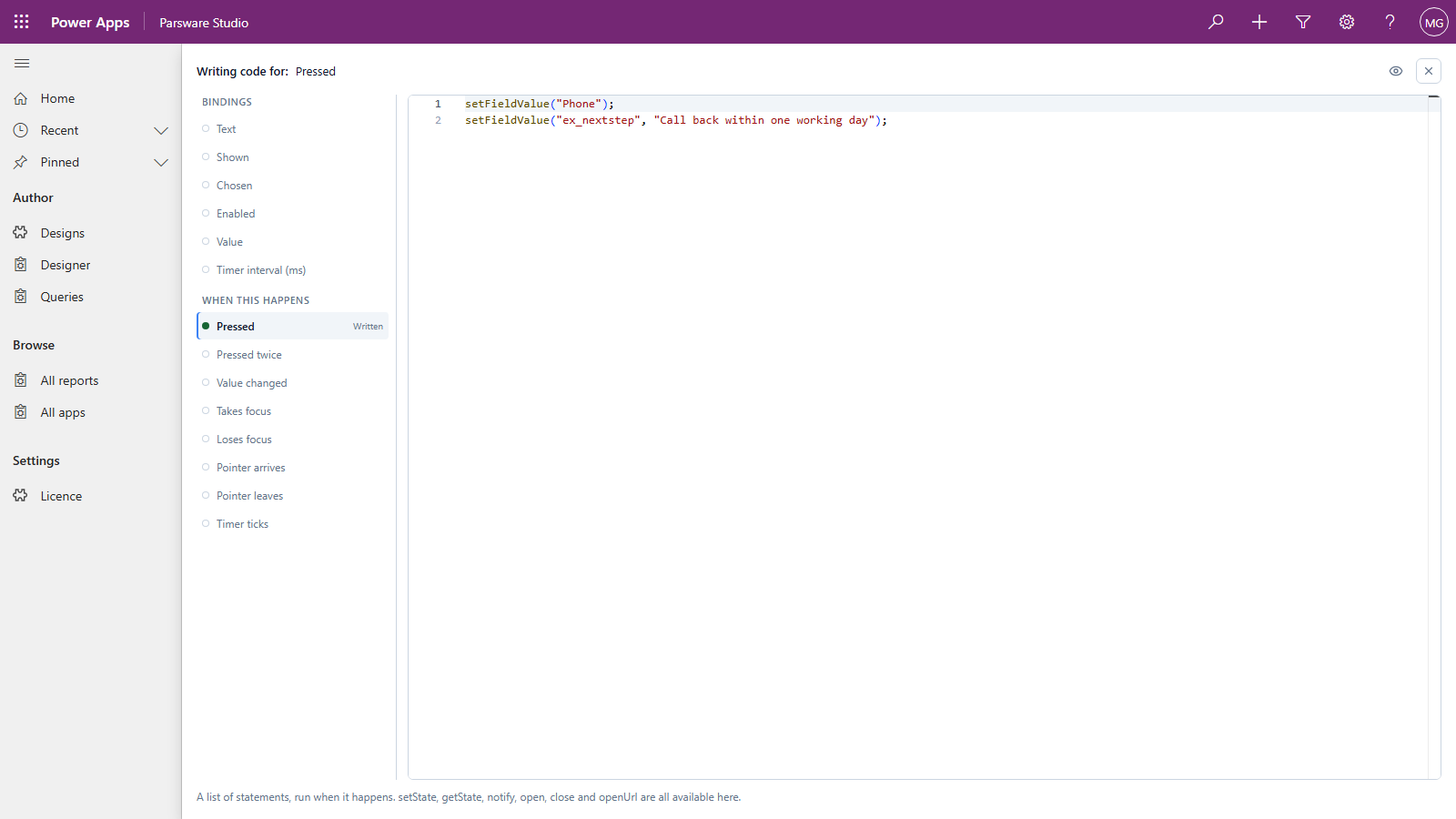
Save, Publish, and open a case.
4. Use it
Press Phone:
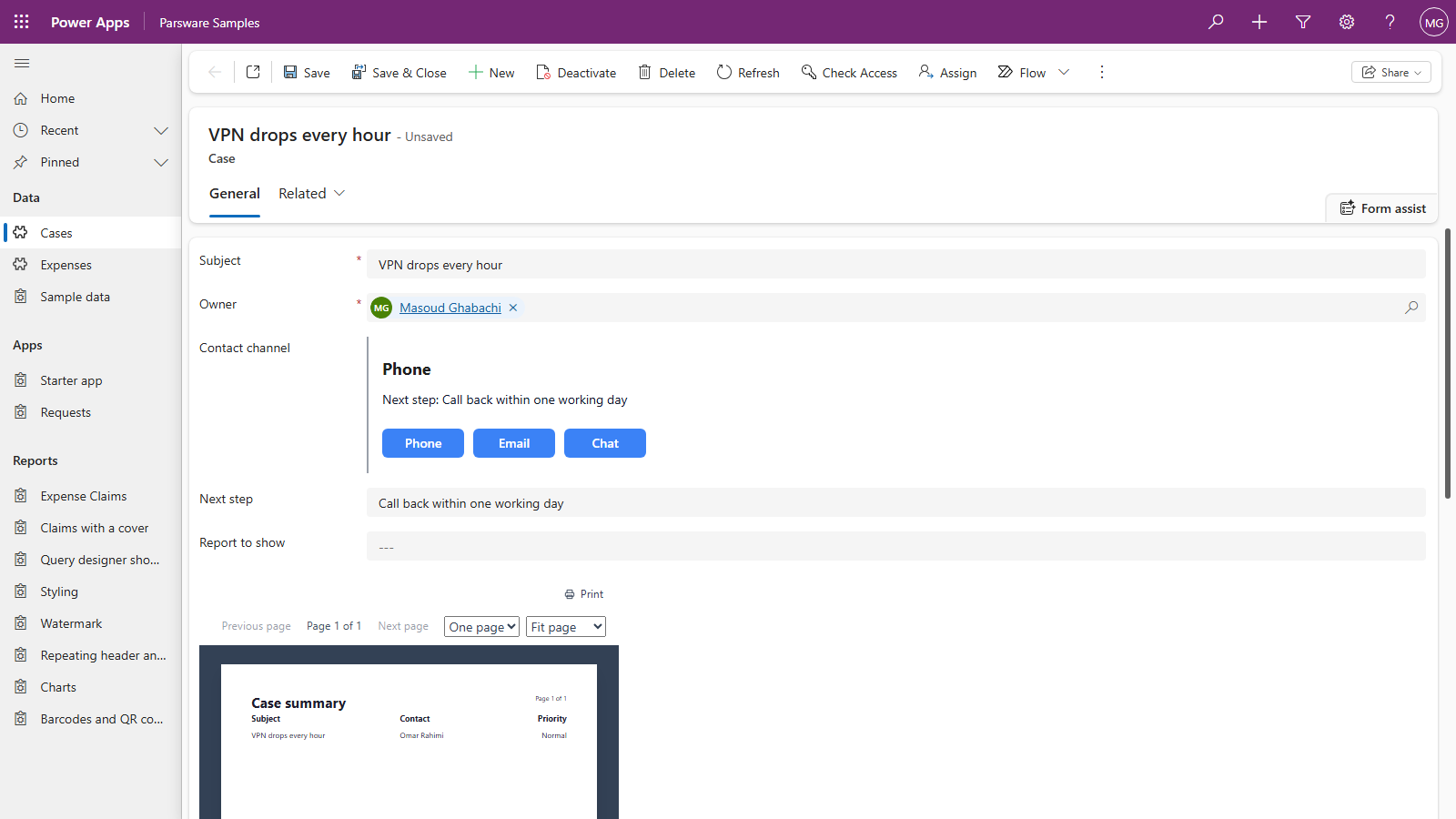
Both columns changed at once: the channel the field sits on, and Next step, which the ordinary field further down the form shows as well. Both are unsaved changes to the form, saved together when the record is saved. Open a case and type in the ordinary Next step field, and the drawn one follows, because it reads the same column.
Good to know
- Up to four columns in all: the one the component sits on and three more.
- A column that isn't bound reads as empty.
fields.ex_somethingelseis""rather than an error, so a screen drawn for one form still works on a form that binds fewer columns. - Bind every column a screen writes.
setFieldValue("ex_other", "…")on a column nobody bound can't reach the form, so the screen reports it, naming the column and saying to bind it in the form designer. - The drawn field keeps following the form. After a button has written a column, typing a different value in the ordinary field still updates the drawn one straight away. (Before runtime 0.44 the drawn line kept the button's value until the record was opened again.)
- The same types as before: text, numbers, currency, dates and yes/no. Lookups and choices can't be bound yet.
Next
Screens that read Dataverse rows: lists and charts on a screen, bound to real records. The whole series is in the reading list.