Parsware Platform
The BS editor: completion
The BS editor offers names as you type. At the start of a line it lists the functions the script's host provides, the functions it imported from a solution script, and its own variables. After a dot it lists the value's methods. Here it is in a form rule from the Expense Limit sample, with what it offers and what it leaves to you.
Dieser Artikel ist nur auf Englisch verfügbar.
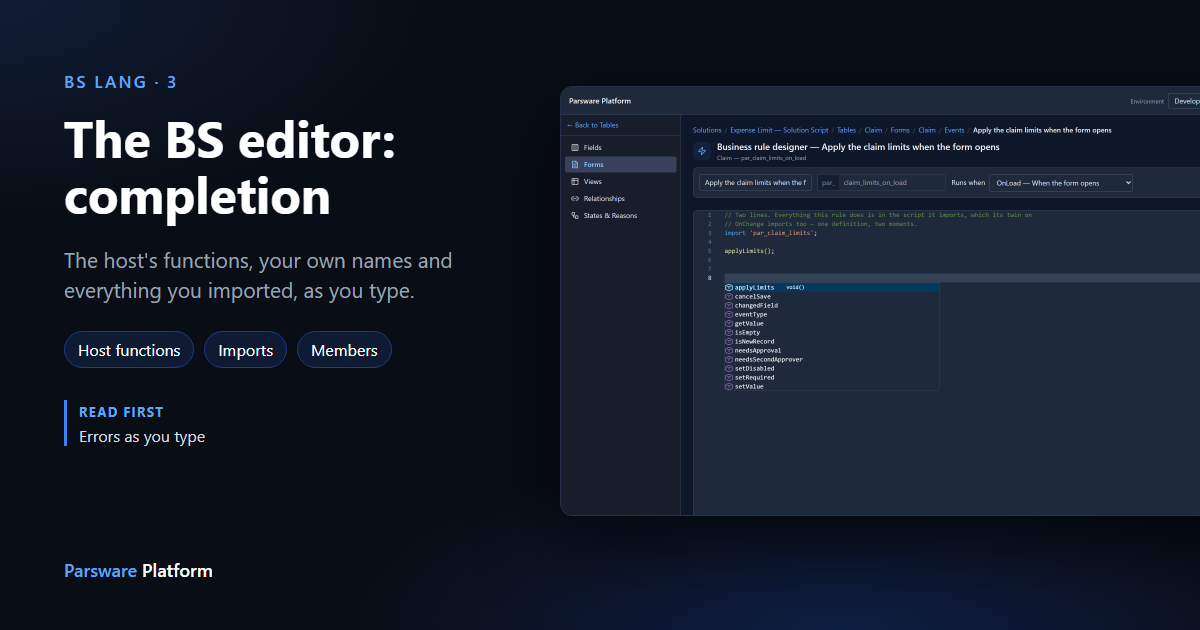
You don't have to remember every function a script can call. The BS editor, where every Parsware script is written, completes names as you type: the functions the script's host gives it, the ones it imported, its own variables, and the methods of a value after a dot. Each suggestion shows its signature, so you see what it takes before you choose it.
We used the Expense Limit — Solution Script sample (business-rules-expense-limit-solution-script).
It has a Claim table, a form, and two form rules that both import one solution script,
Claim limits. Import it into a development environment to follow along.
The rule
Open the sample, then Tables → Claim → Forms → Claim → Events, and open Apply the claim limits when the form opens. The whole rule is two lines: it imports the solution script and calls one of its functions.
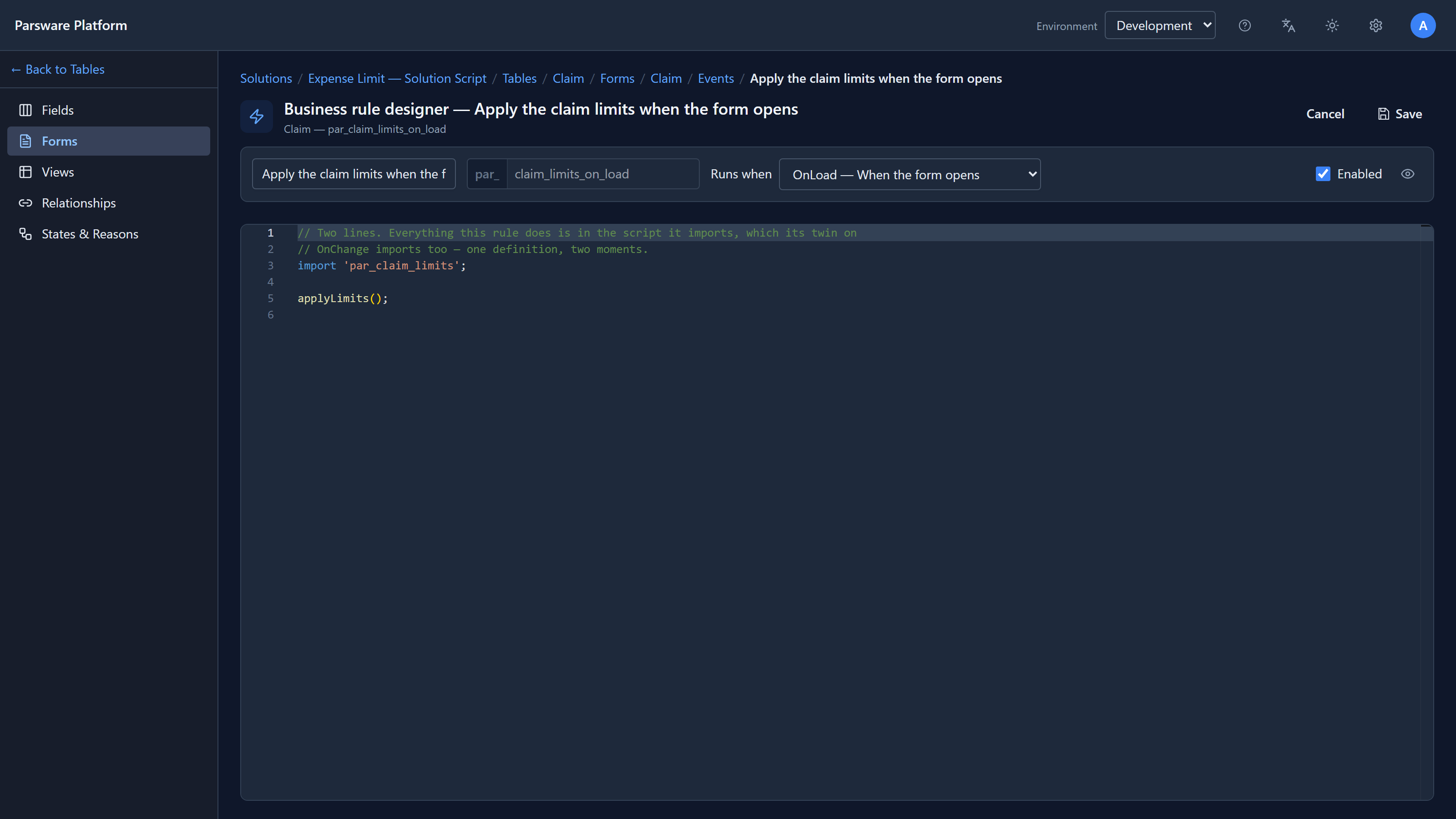
We typed into it to try completion, and pressed Cancel afterwards, so the sample was left as it came.
The host's functions
A form rule runs in the browser with a form in front of it, so it can read and change fields. Start
a new line and type set:
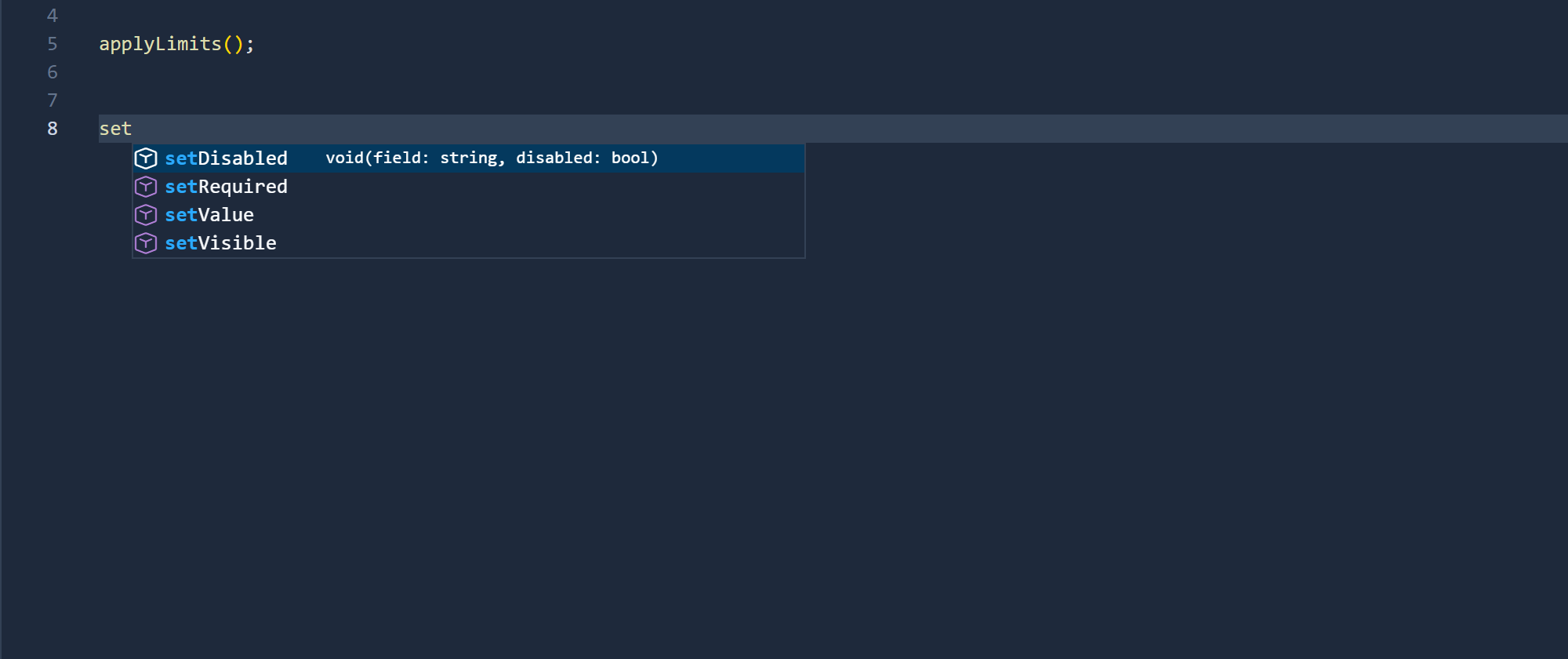
The list narrows as you type. The highlighted item shows its signature: setDisabled takes a
field name and a true or false, and returns nothing (void). Press Enter or Tab to insert
it, Escape to close the list.
These are the functions of a form rule. A plugin step, which runs on the server, gets a different set, and a Custom API another. The editor offers only what the script can call where it runs, so a suggestion is always one that works there.
Everything in scope: Ctrl+Space
On an empty line, press Ctrl+Space:
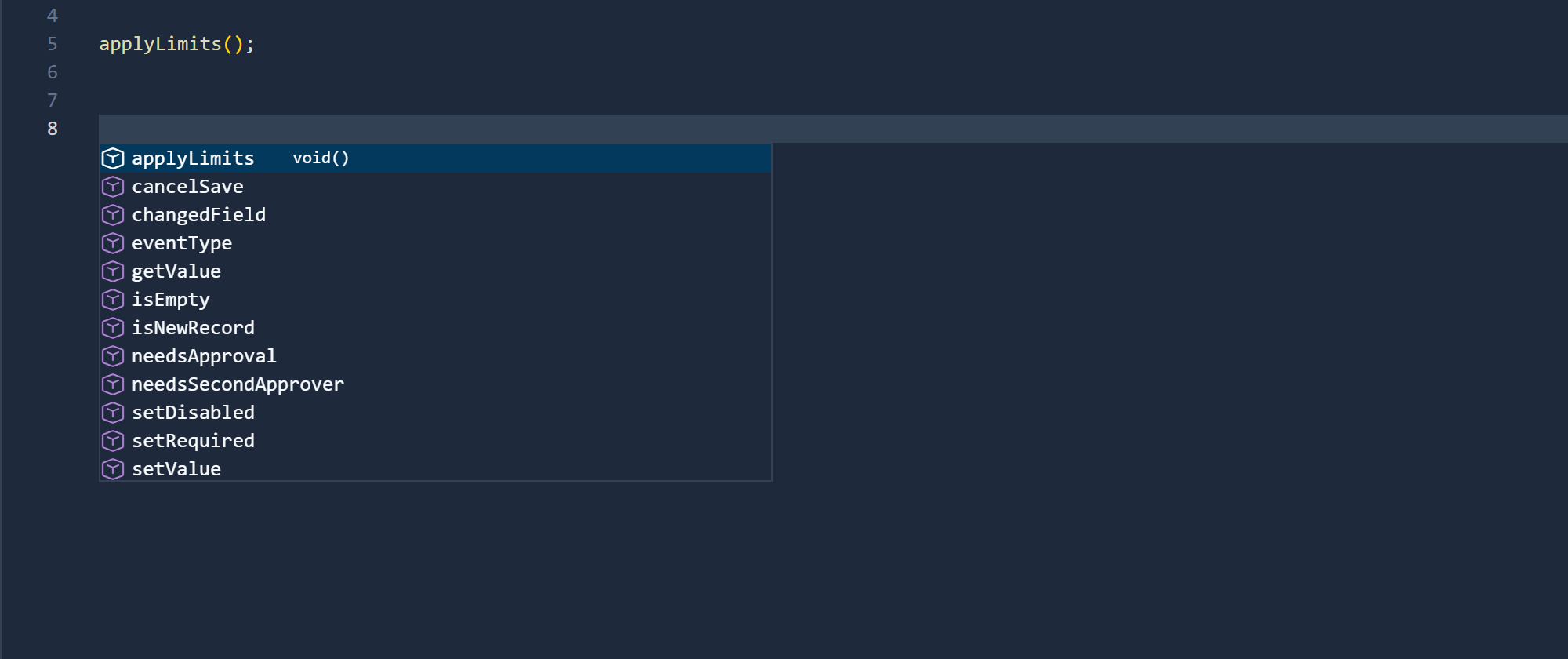
This is everything the rule can name at that point:
- the form rule's own functions:
getValue,setVisible,eventType,isNewRecordand the rest; - what the import brought in:
applyLimits,needsApprovalandneedsSecondApprover, from Claim limits; - the rule's own variables and functions, once it declares some.
The solution script also has a function called approvalLimit, and it isn't in the list. That's
deliberate. Claim limits doesn't export it, so the import doesn't bring it in, and a rule can't
call it. Completion offers exactly what the rule is able to call.
Functions from another script
Type needs:
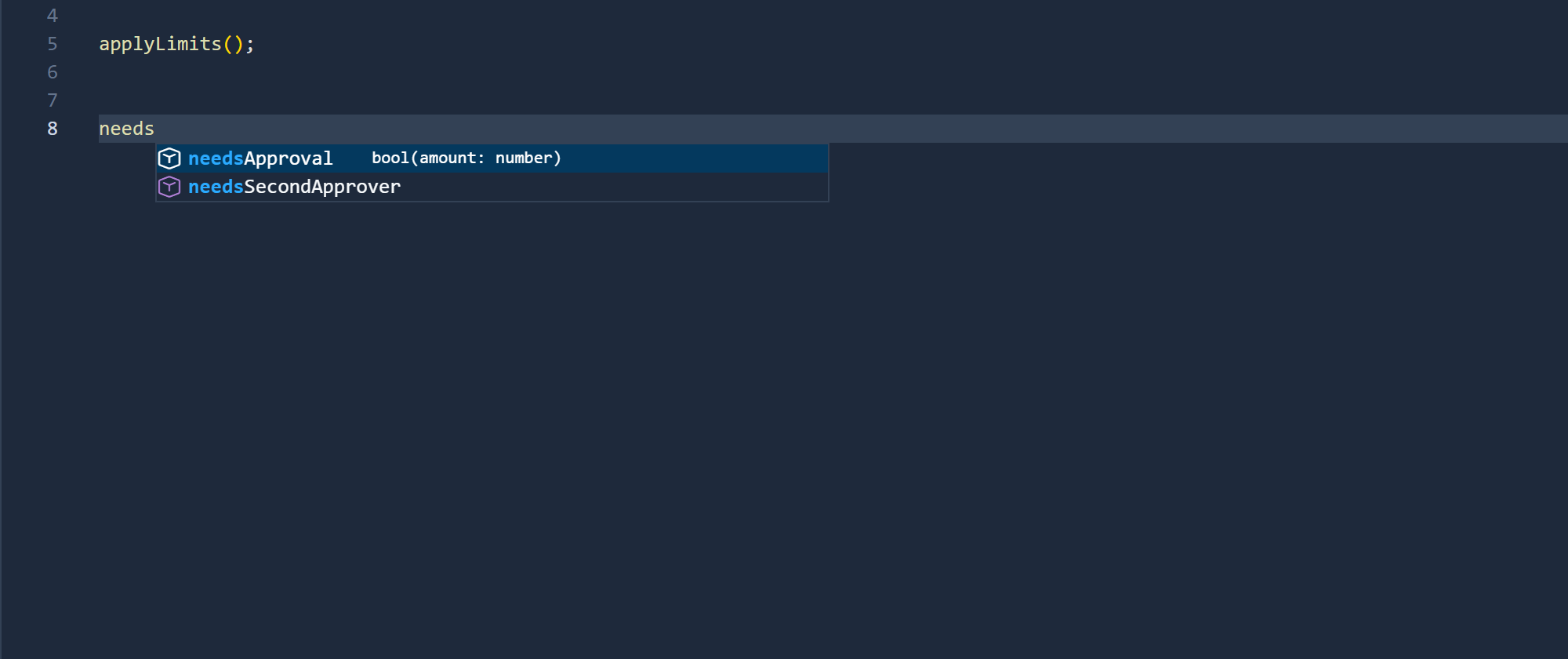
needsApproval takes an amount that is a number and answers true or false. You can see
that without opening the other script. It's the reason to import a solution script rather than
copy its code: the logic lives in one place, and completion still shows you what it offers.
After a dot: the value's methods
Completion also works after a dot. We declared some text, var note = 'Over the limit ';, and typed
note.:
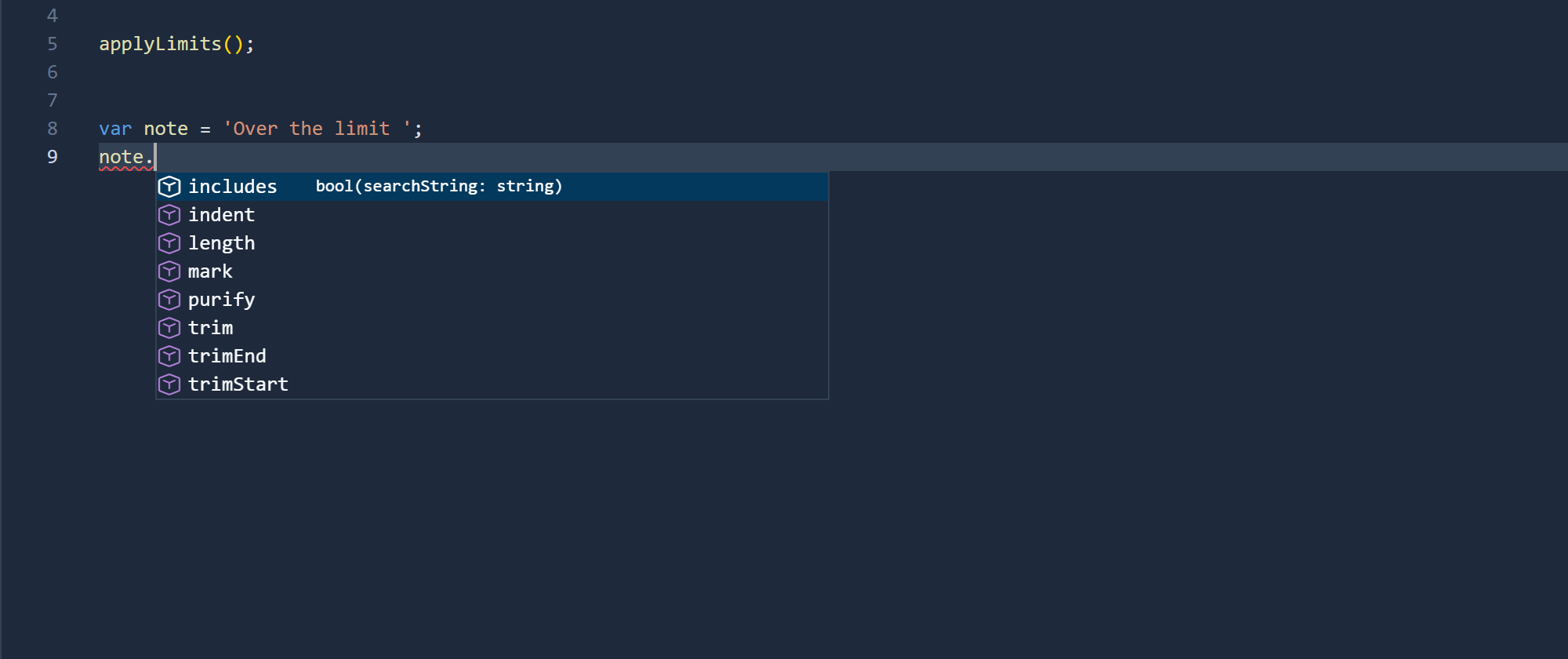
These are the methods of a string: trim removes the spaces at either end, includes checks
whether it contains some text, and so on. The list depends on the kind of value: a list offers
push, join, filter and the others instead. The form rule's own functions aren't in it,
because note.getValue isn't something you can call. Keep typing and the list narrows: note.tr
leaves trim, trimEnd and trimStart.
What it doesn't offer
- Field names in a form rule. Inside
getValue('...')you type the field's logical name, such aspar_amount, yourself. The table's Fields page lists every field's logical name. A mistake there isn't underlined either (see errors as you type), so copy the name rather than typing it from memory. - Names inside a function body. Completion offers the names at the top of the script: its variables and functions, and the imports. Inside a function, its parameters and local variables aren't offered yet.
Three gaps we found and fixed
Three things were wrong with completion when we started this article, and all three are fixed:
- It left out imported functions. Typing
needsoffered nothing, although the rule could call both functions. It offered only the host's functions, never the script's own names or anything it imported. Now it offers all three, as in the pictures above. - After a dot it mixed in the host's functions, then gave up. Typing
note.listed the string's methods andgetValue,setVisibleand the rest, which can't go after a dot. One letter later the list closed. The editor was cutting one character too many off the end before asking for suggestions. Now it lists only the value's methods and keeps narrowing as you type. - A list was offered its elements' methods. After
lines.on a list of text, it offeredtrimandincludes, the methods of one piece of text, and neverpushorjoin. It now offers a list's methods for a list.
Each has a test, in the editor or in the language.
Try it
Import the sample, open either rule, and press Ctrl+Space on an empty line. Then open Scripts →
Claim limits and look at the export line: every name on it is one completion offers in the
rules.
Next: signature help, and formatting a script with one key.