Parsware Platform
Work with records in a view
Most of a working day in a Parsware app is spent in a view, the list of one table's records. Sort by one column or several, search, build a filter with And and Or, select records, open one, save it, and delete what you no longer need.
Dieser Artikel ist nur auf Englisch verfügbar.
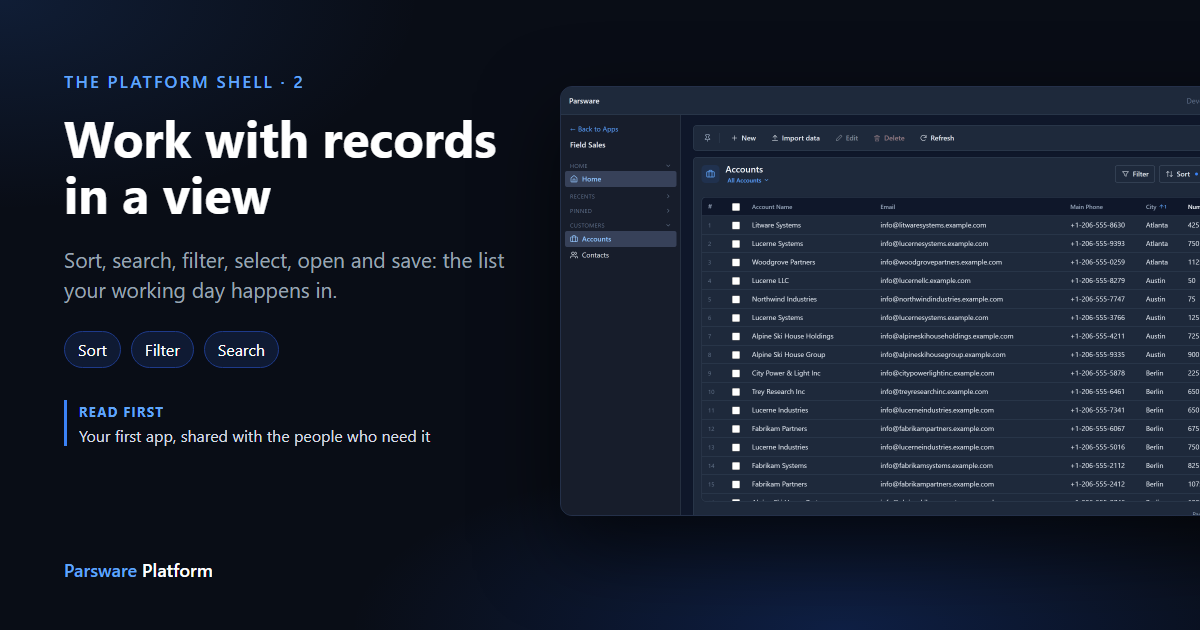
Most of a working day in a Parsware app is spent in a view: the list of one table's records, with the columns a maker chose for it. This article is for the people who use apps rather than build them. It shows everything you can do with records in a view, from sorting and searching to opening a record, saving it and deleting it.
We used the Field Sales app and its Accounts table, which has a hundred made-up companies in it. Every picture is the real product.
The view
Open an app from the apps list, and pick a table from the rail on the left. The table opens on its default view:
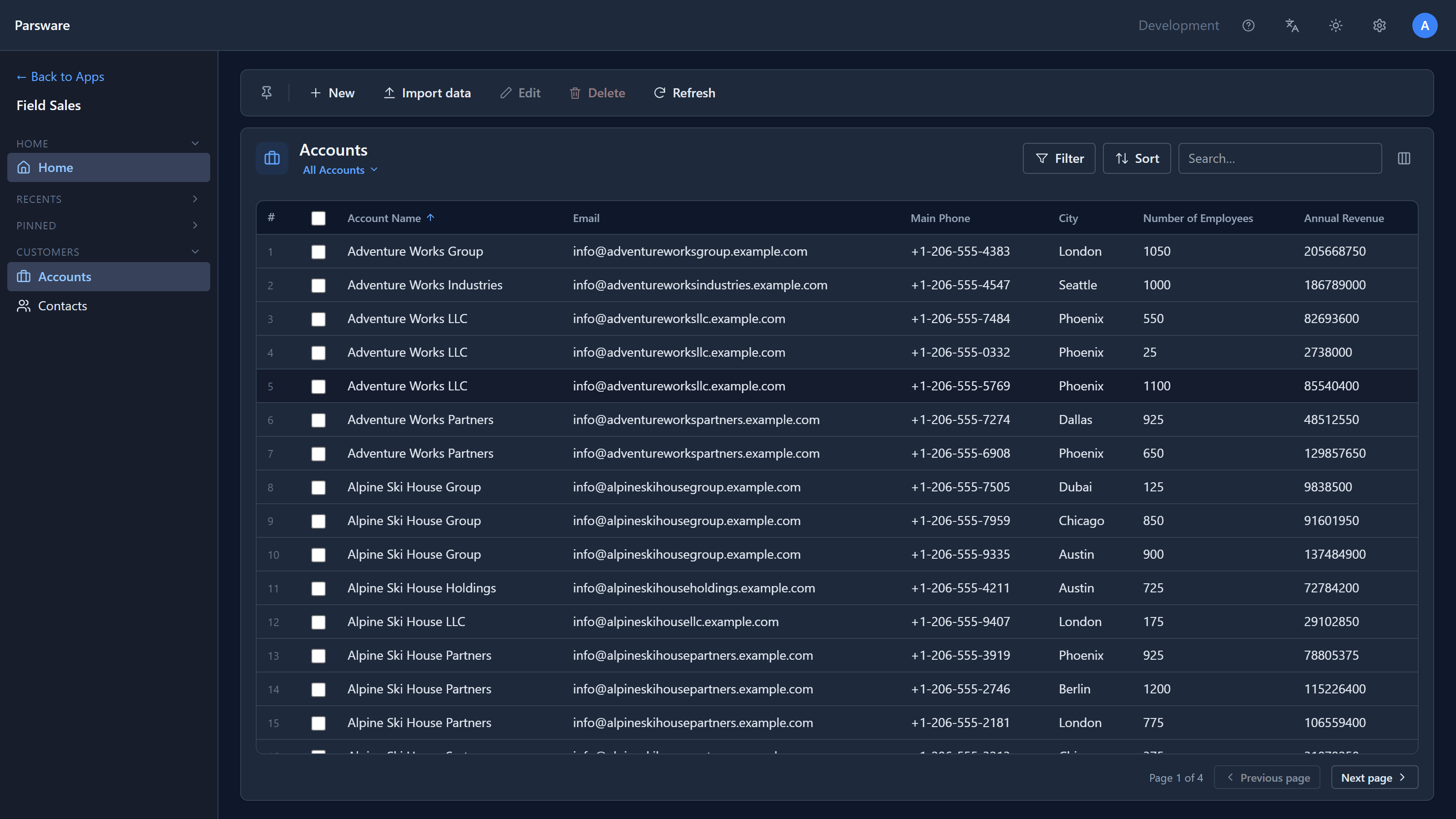
From the top:
- the command bar: New, Edit, Delete, Refresh, and whatever else the maker added, such as Import data here;
- the view's name, All Accounts. If the table has more than one view, it is a menu that switches between them;
- Filter, Sort and a search box;
- the grid itself, one page of records at a time, with Previous page and Next page at the bottom.
Sort
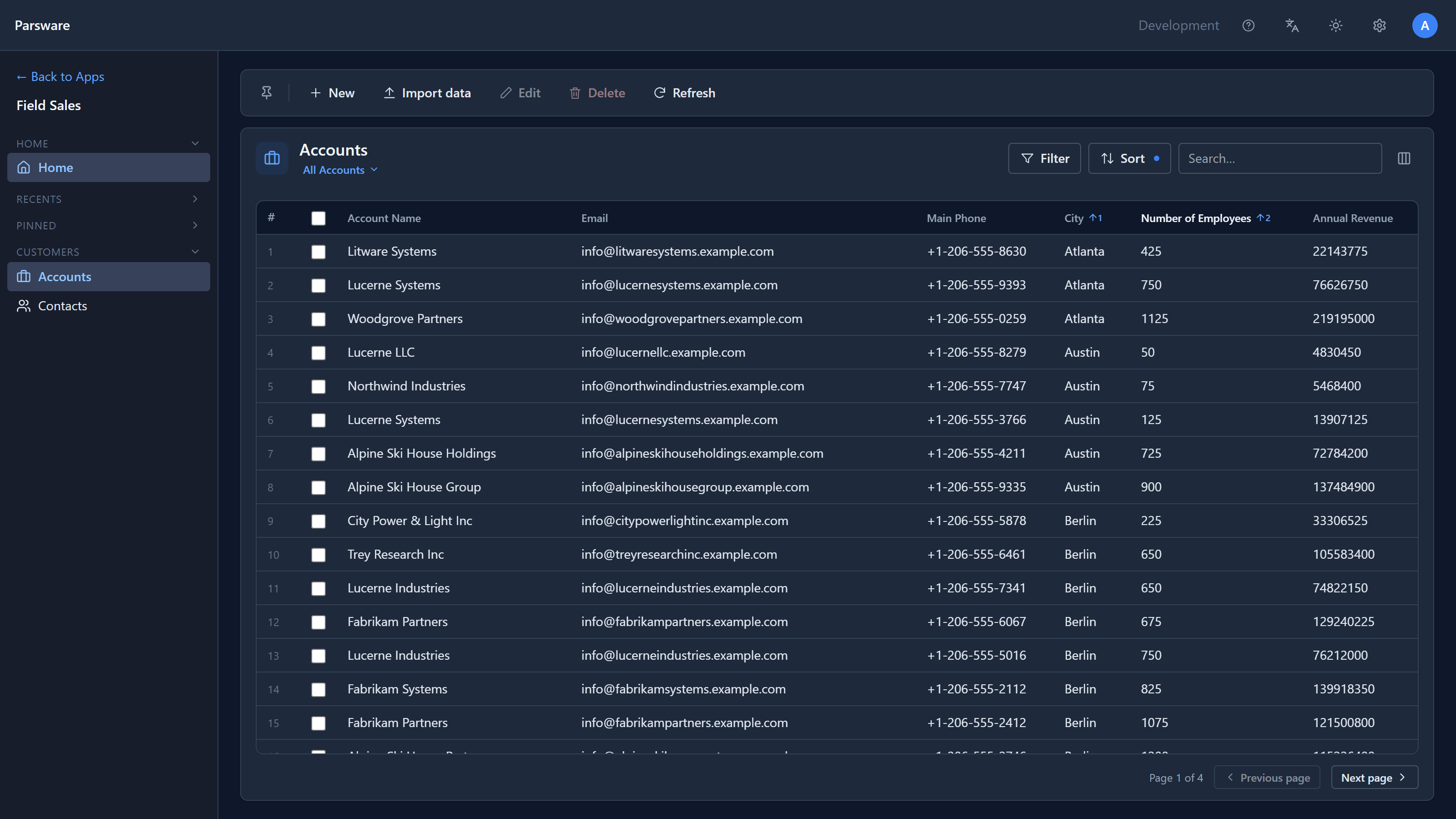
Select a column heading to sort by it, and select it again to reverse the order. The arrow beside the heading shows the direction.
To sort by more than one column, hold Shift and select the next heading. Here we sorted by City, then held Shift and selected Number of Employees. Each heading now carries a small number for its place in the order, and within each city the smallest companies come first:
Sort does the same thing without a mouse. It lists the order as rows, Sort by and then by, each ascending or descending. Add sort level adds a row, the × removes one, and dragging a row by its handle changes its place:
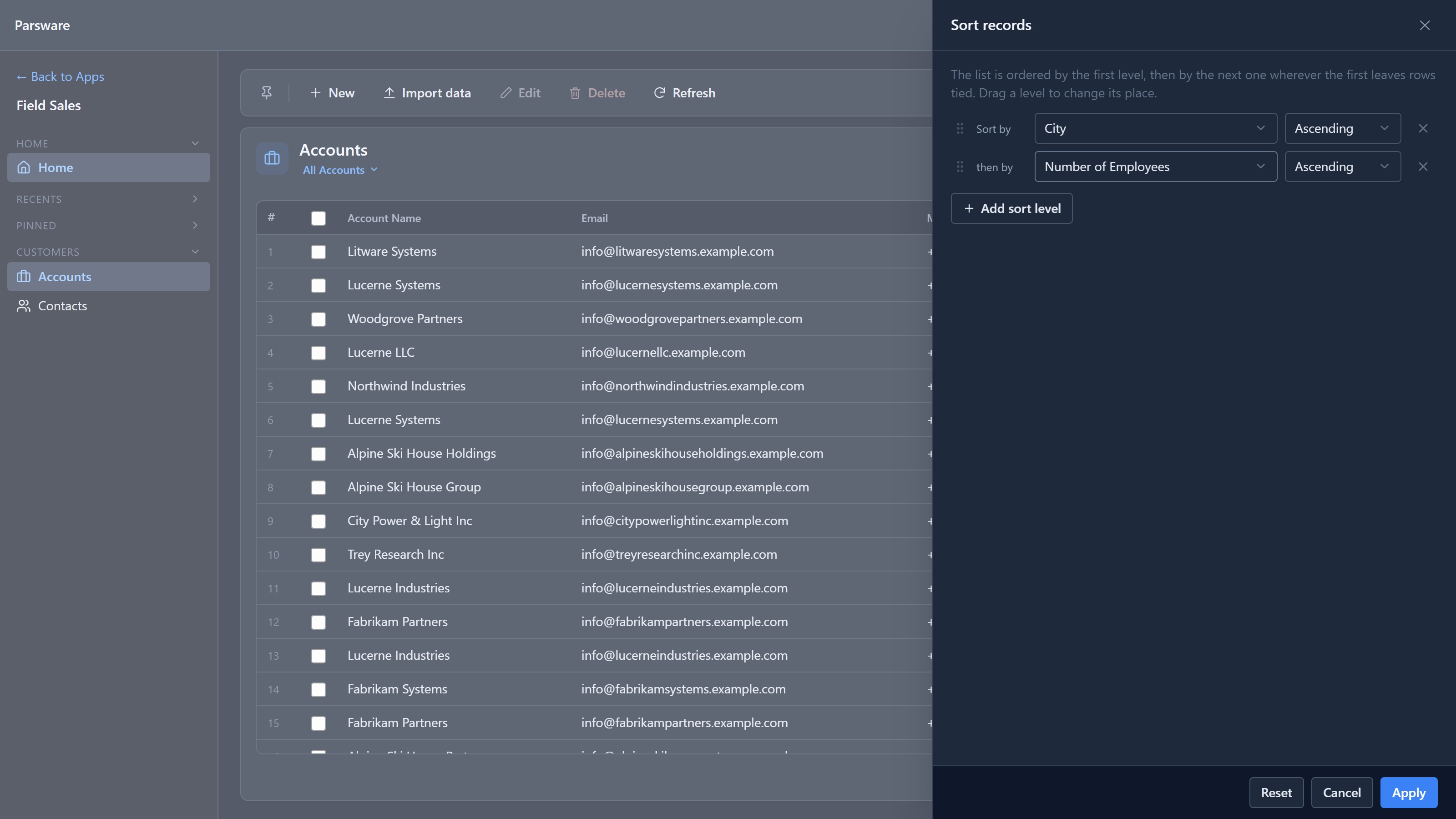
Reset goes back to the order the view was designed with.
Search
Type in the search box and the grid narrows a moment after you stop typing. Enter applies it at once. It matches the table's main column, here the account name:
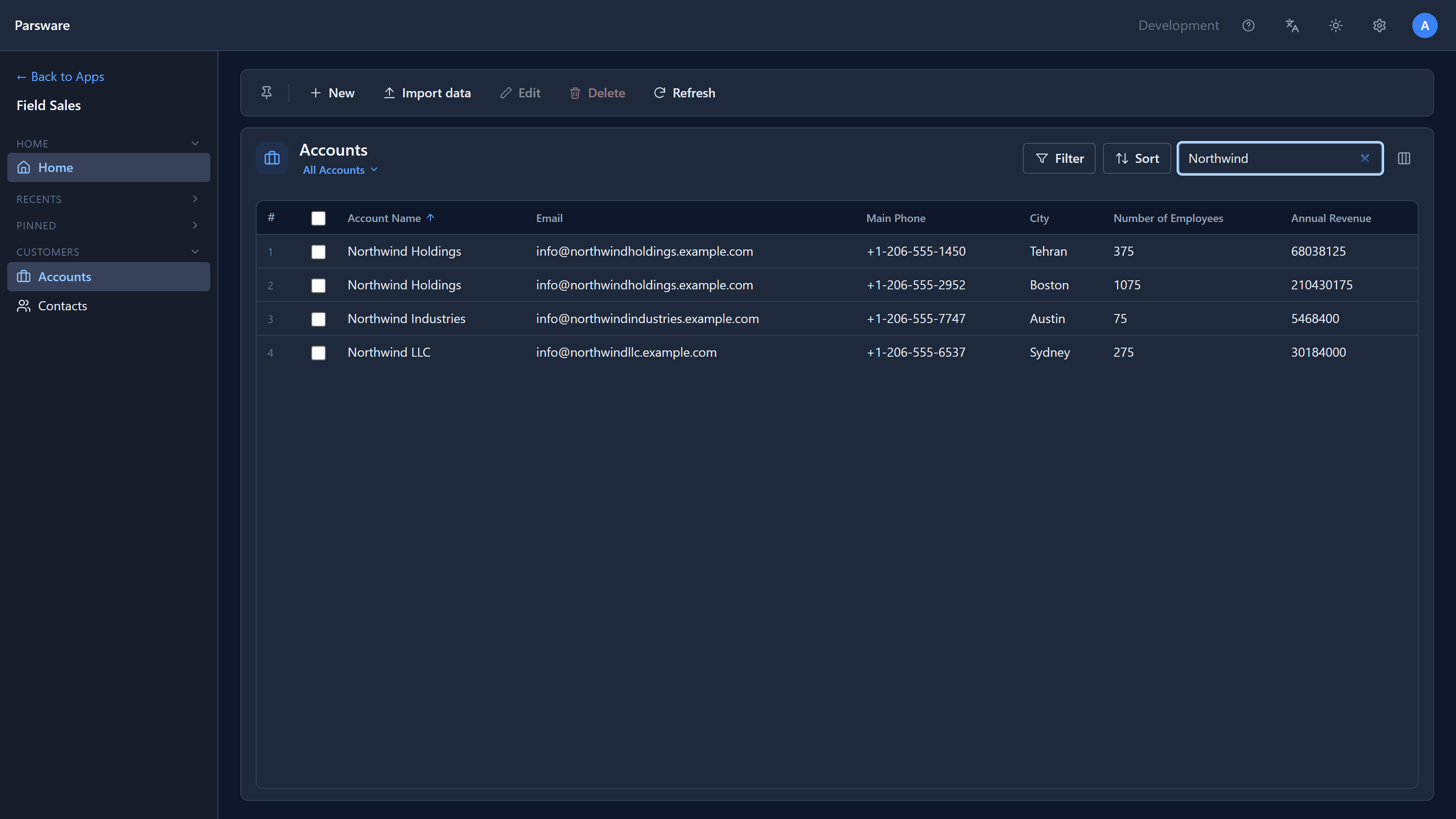
The × in the box clears it.
Filter
Search answers "which one is called...?". Filter answers questions about any column. It opens the same builder a maker uses to design a view: conditions such as City equals London, joined with And or Or, and groups inside groups for questions that need both.
We asked for London accounts with more than 500 employees:
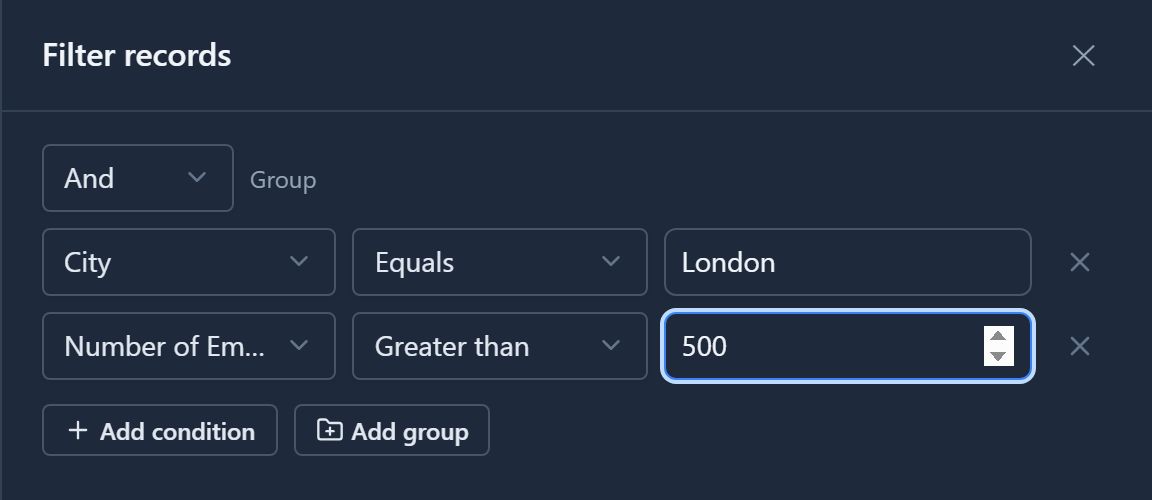
Apply, and five accounts are left. The dot on the Filter button says a filter is on, so an empty or short list is never mistaken for missing data:
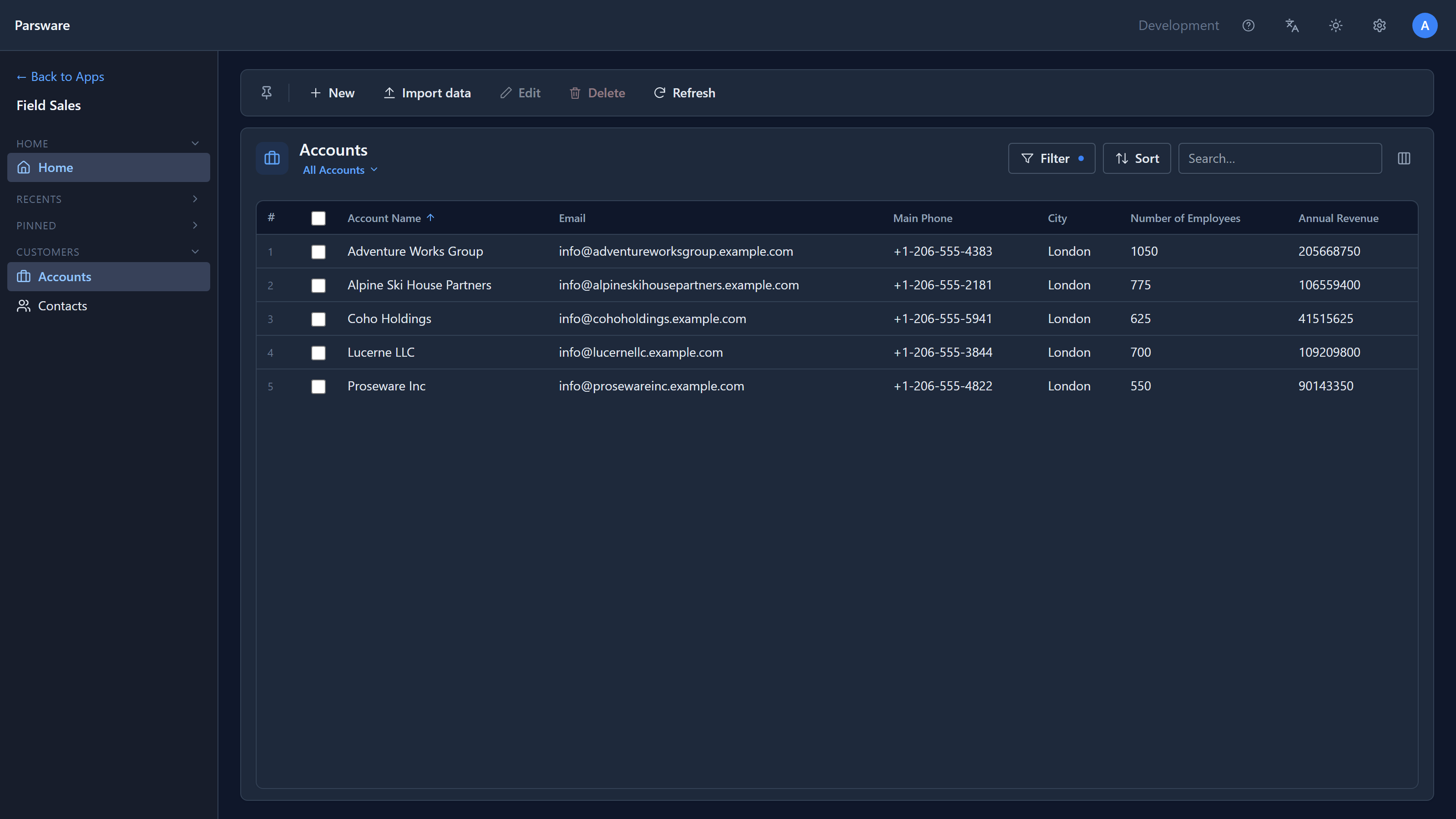
Your filter narrows the view; it never shows a record the view itself leaves out. It and your sort last until you switch view or leave the page. They don't change the view for anybody else. To keep a filter for everyone, a maker saves it on the view (filters with And and Or).
Select
Tick a row's checkbox to select it. The command bar follows the selection: Edit needs exactly one record, and Delete works on several and says how many:
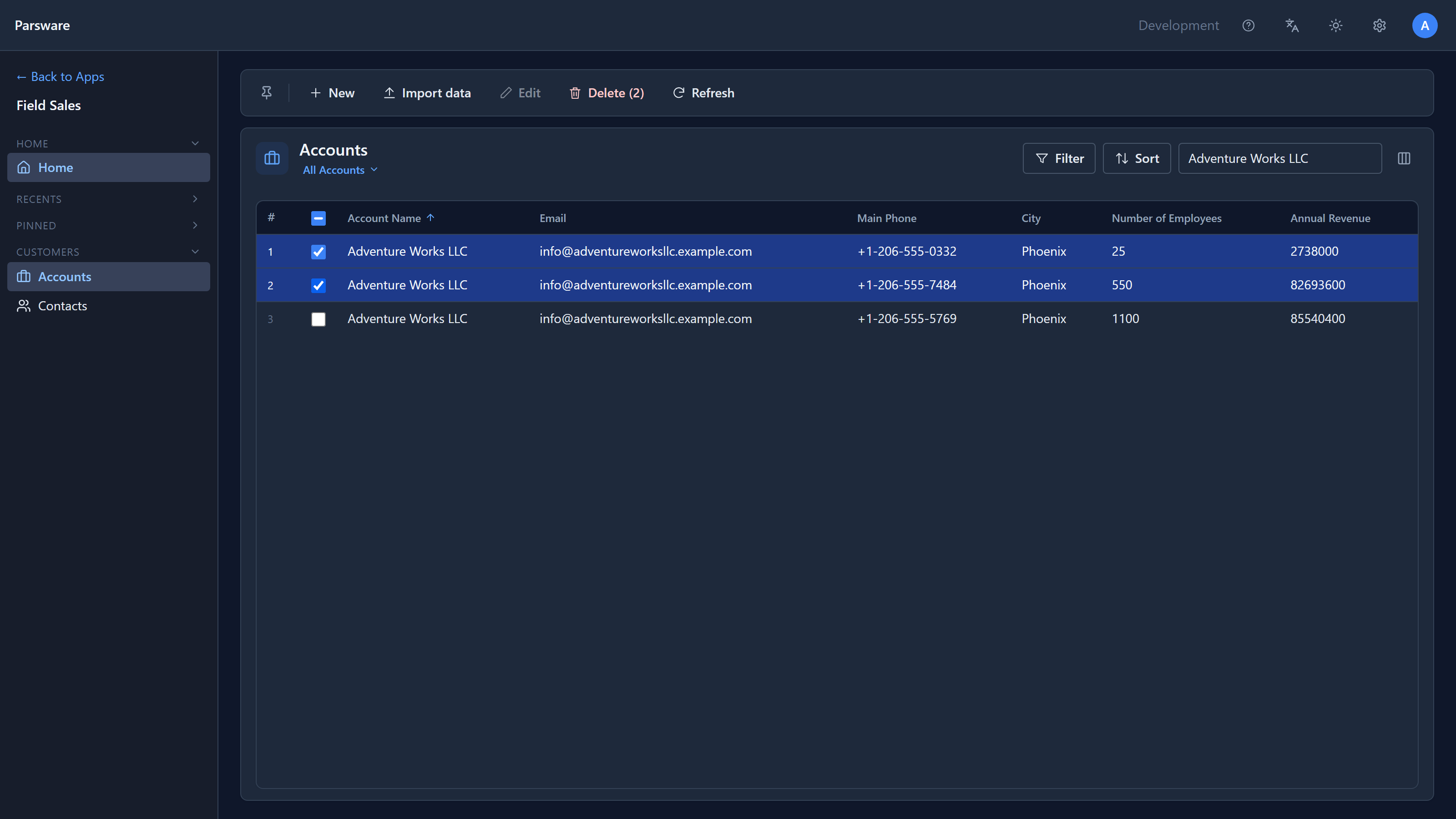
The checkbox in the heading selects every row on the page.
Open and save
Select a record's name to open it, or tick it and press Edit. The record opens on its form:
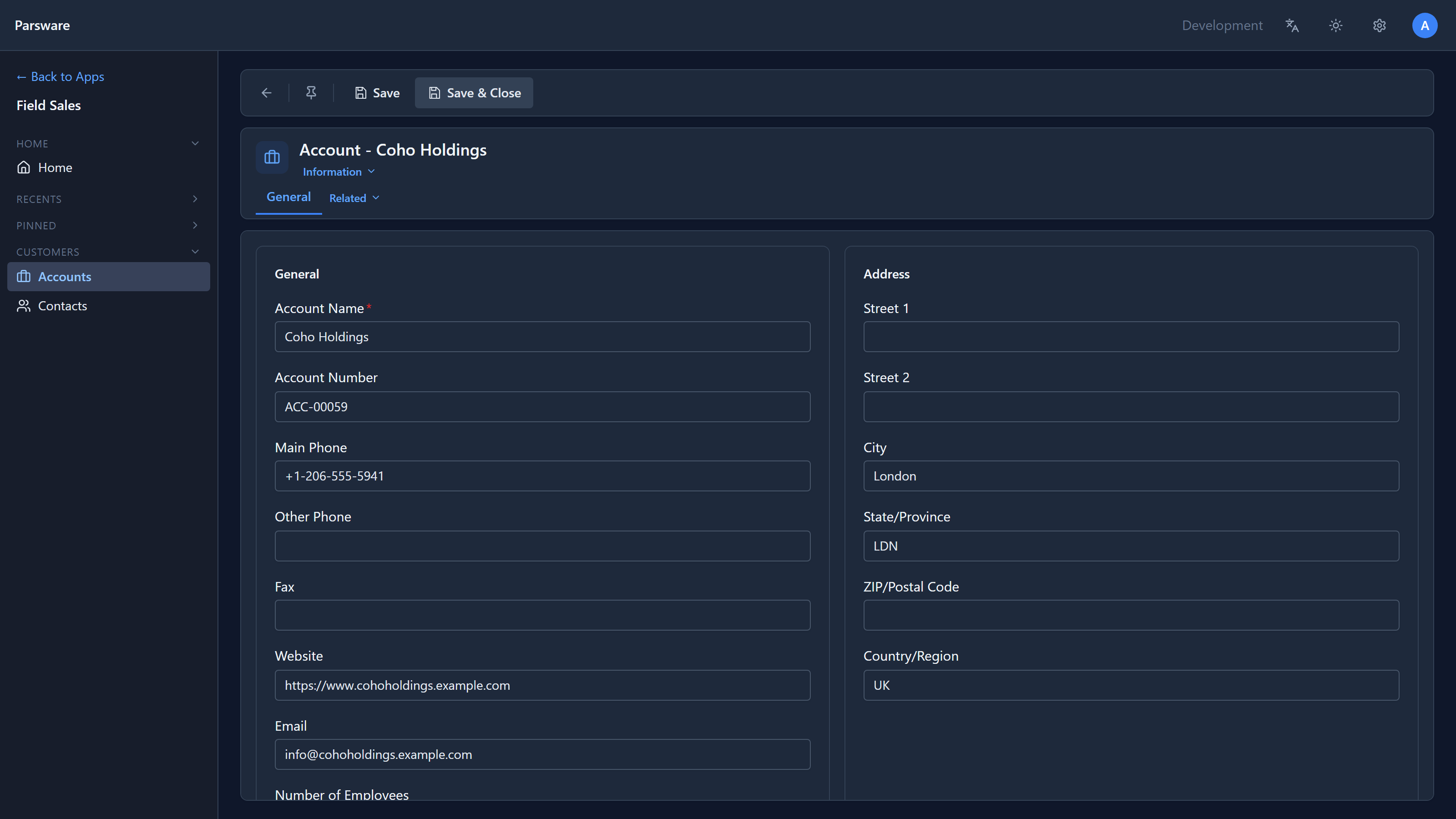
Change what you need, then:
- Save stores it and keeps the form open;
- Save & Close stores it and takes you back to the list.
The arrow at the start of the command bar is Close: it leaves without saving. If you have changed something, the app first asks Discard unsaved changes?, and it asks the same question however you leave, including the browser's Back button.
Delete
Select the records, press Delete, and confirm:
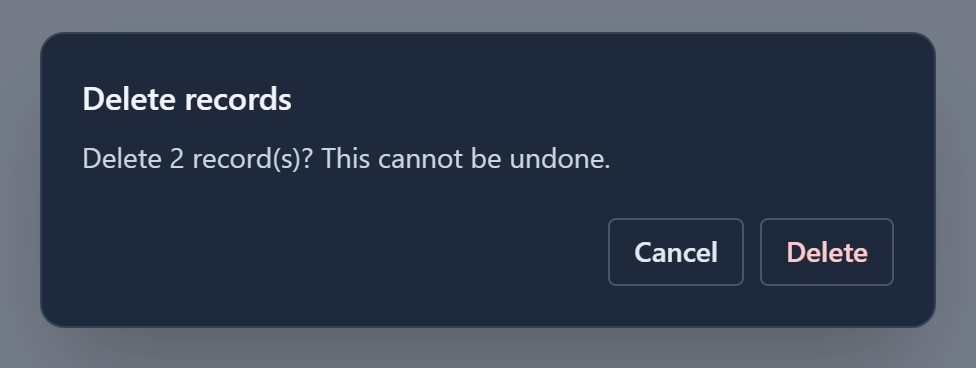
Deleting is permanent, which is why it asks. If other records still point at one you are deleting, the platform refuses and names them, and nothing is deleted.
Commands you don't see
The command bar only shows what your security role lets you do with this table. If you can't create records here there is no New, and if you can't delete them there is no Delete. Nothing is greyed out and then refused. If you can read a table but not change it, Edit reads Open, and the record opens with nothing you can type into and no Save.
The platform checks your permission again on the server every time a record is read or written, so a hidden button is a courtesy, not the protection.
Next: every environment has its own address, and moving between them.